

Everything Notebook Clipper adds to Gemini Notebook (NotebookLM)
30+ features that go where Gemini Notebook doesn’t: getting your sources in, keeping your research organized, getting your work back out, and working faster inside it.
 Add to Chrome — It’s Free
4.85/5 · 30,000+ users on Chrome Web Store
01 · Get your sources in
Stop copying, switching tabs and pasting
Anything in your browser can become a source. Pick a notebook, and carry on with what you were doing.
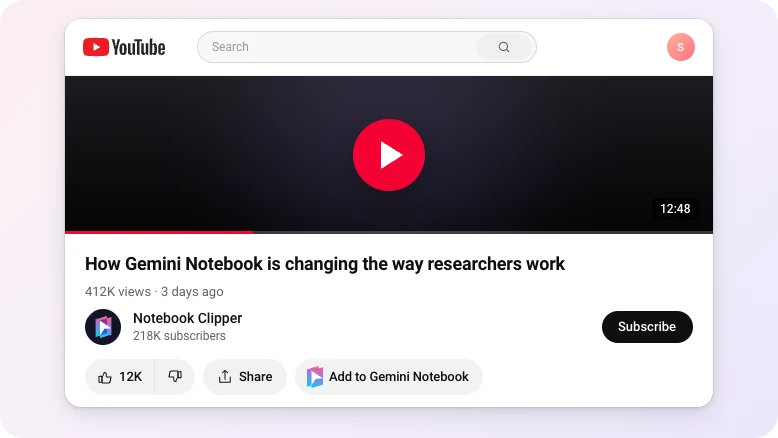
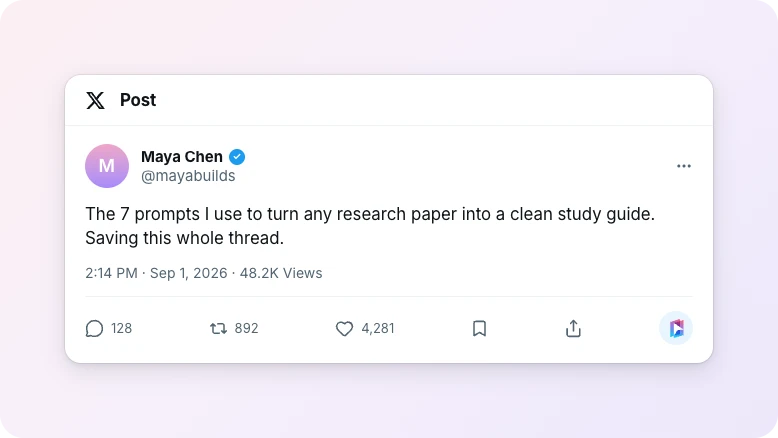
X (formerly Twitter)
Add posts, threads, articles, or your whole bookmarks list.
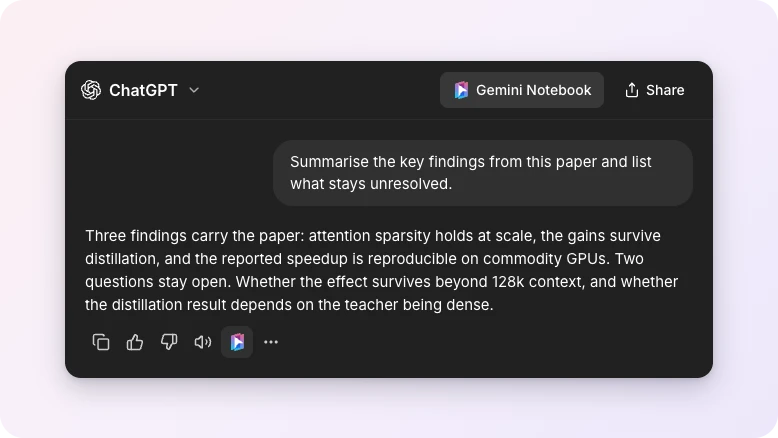
AI chats
Add conversations from ChatGPT, Claude, Gemini, Perplexity, DeepSeek and Grok.
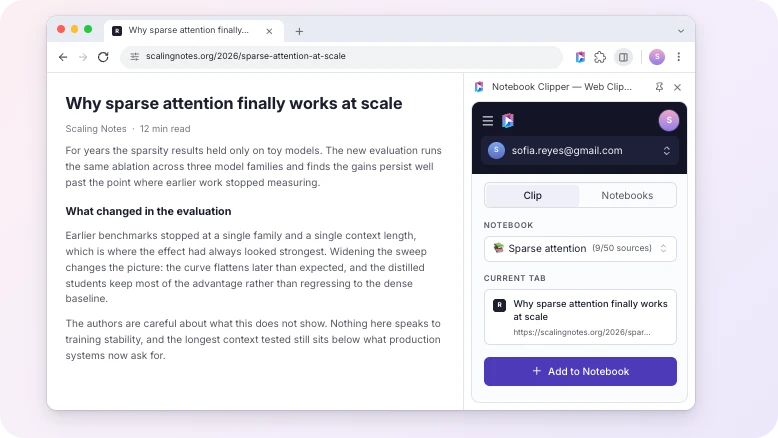
Any web page
Add any web page as a source, straight from the side panel.
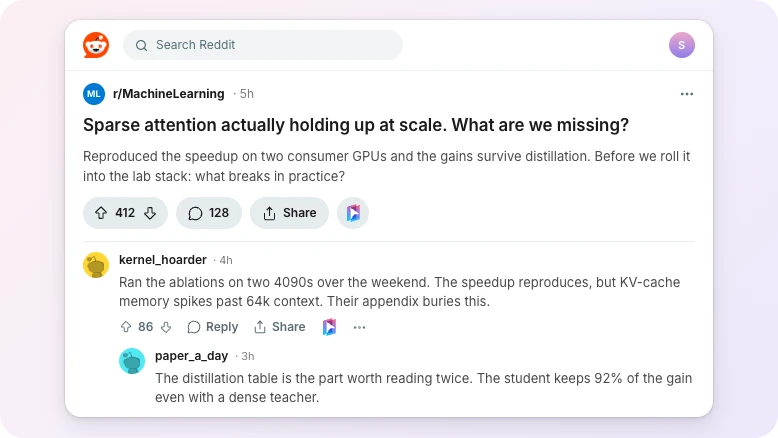
Add a post together with the comment thread underneath.
Google Docs, Sheets and Slides
Add the document you’re editing without exporting it first.
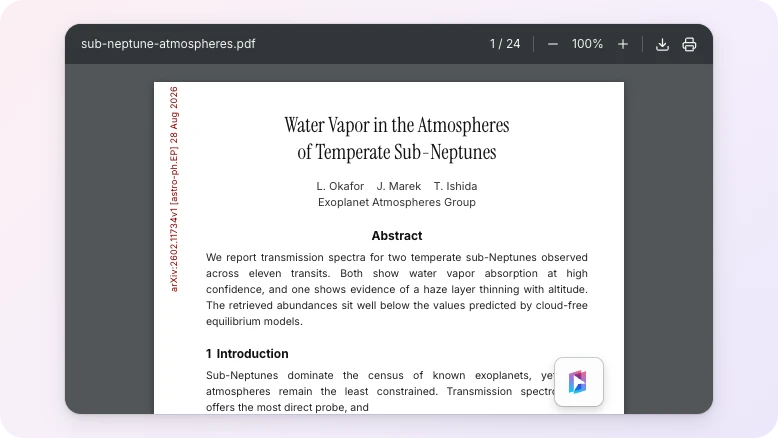
PDFs
Add any PDF open in your browser, including arXiv papers.
Naver News
Add Korean news articles with their full text.
note.com
Add Japanese long-form posts in full.
02 · Keep your research organized
Everything you need as your notebooks multiply
Your research works as one, however many notebooks it spans. Search it all and rearrange it, from the side panel or the app.
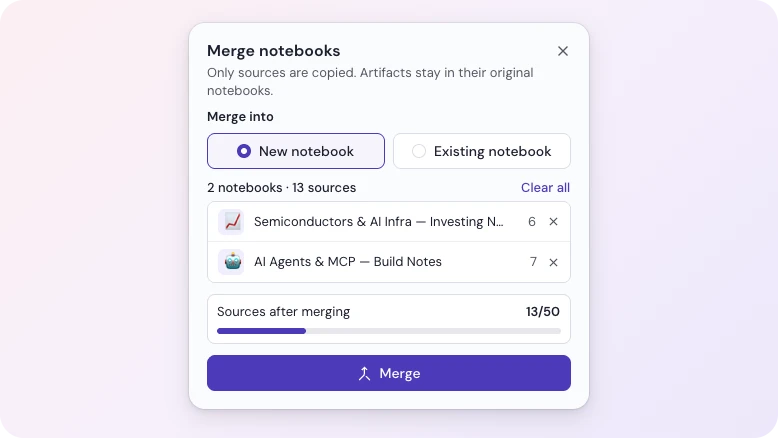
Merge notebooks
Fold several notebooks into one, either a new notebook or one you already have.
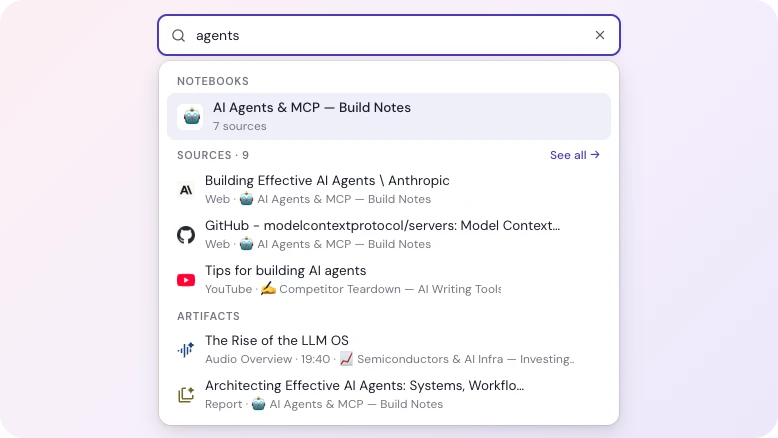
Search across every notebook
Look through every notebook, source and artifact at once.
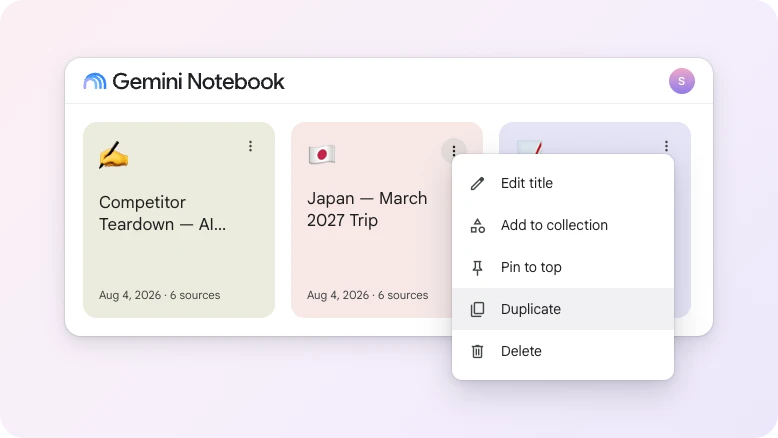
Duplicate a notebook
Copy a notebook with all its sources, ready to take somewhere new.
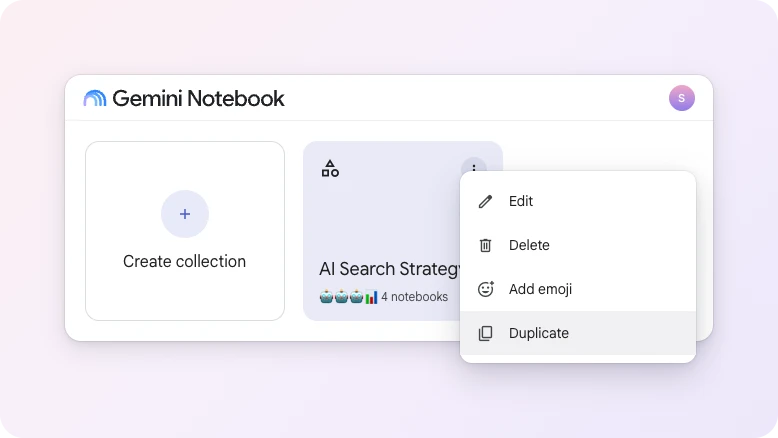
Duplicate a collection
Copy a collection’s line-up in one go, without duplicating the notebooks themselves.
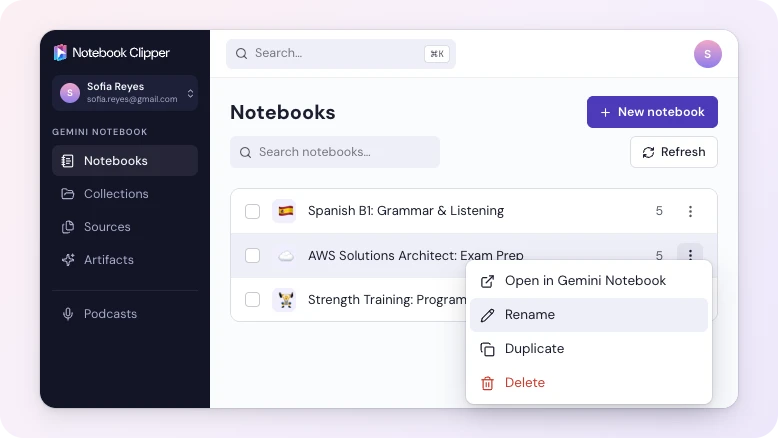
Manage your notebooks
Create, rename and delete without opening Gemini Notebook.
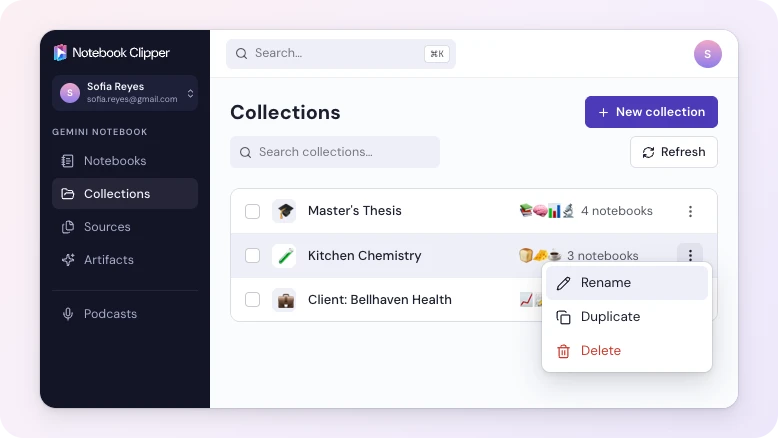
Manage your collections
Group notebooks together, and move them around as your work changes.
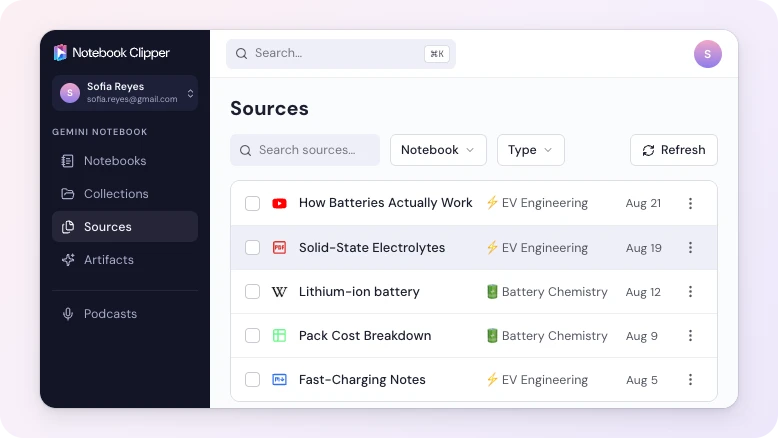
See all your sources
Browse every source across all your notebooks, without opening a single one.
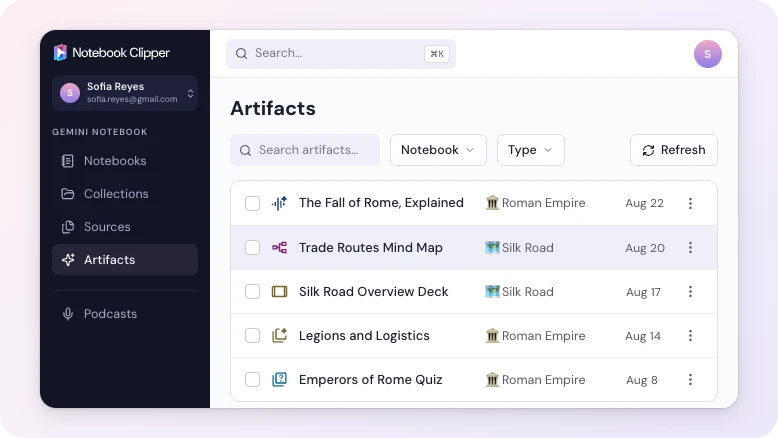
See all your artifacts
Find everything the Studio makes, from mind maps to slide decks, across all your notebooks.
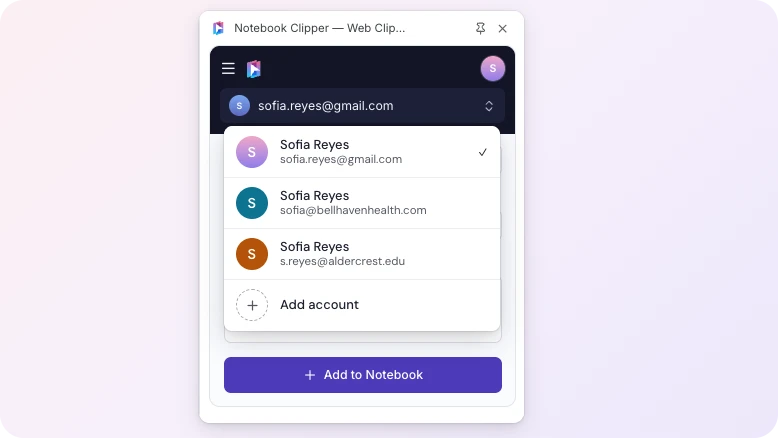
Switch Google accounts
See notebooks from work and personal accounts without signing out.
03 · Get your work back out
Made in Gemini Notebook, used everywhere else
Everything in your notebook comes out: sources, Studio artifacts, chat transcripts, even Audio Overviews as a podcast you can subscribe to.
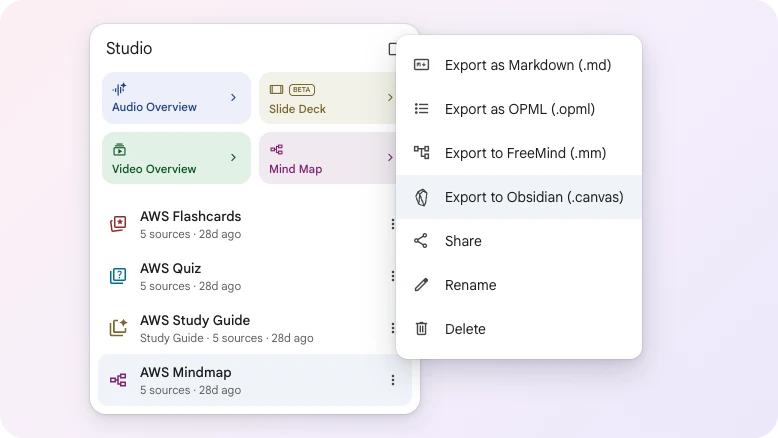
Export your artifacts
Get flashcards into Anki, mind maps into Obsidian, reports into Word, and everything else the Studio makes.
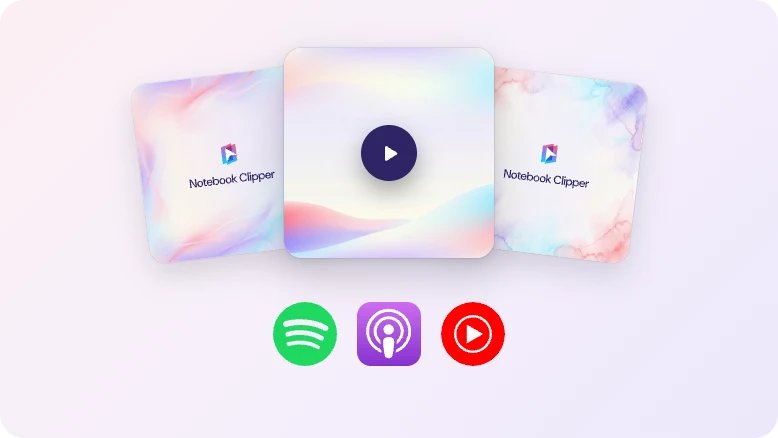
Turn Audio Overviews into a podcast
Publish a real RSS feed you can submit to Spotify and Apple Podcasts, so your notebooks play wherever you already listen.
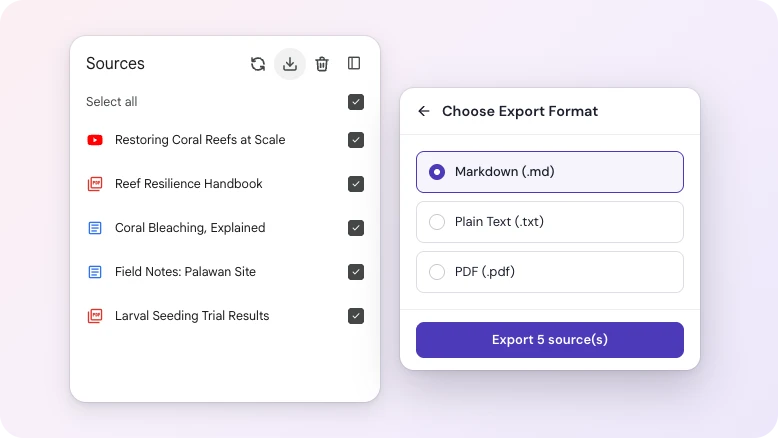
Export your sources
Export every source in a notebook, as Markdown, plain text or PDF.
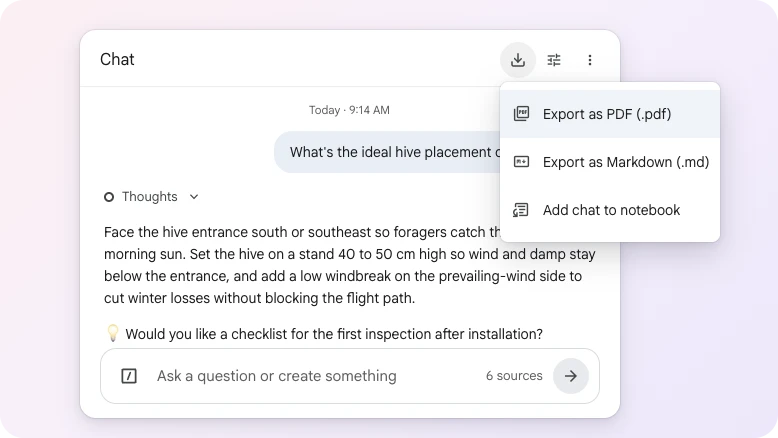
Export chat transcripts
Save the full back and forth, questions and answers, as Markdown or PDF.
04 · Work faster inside Gemini Notebook
Superpowers for your notebook
Small chores inside the notebook stop being chores. Nothing needs you to remember it, repeat it, or do it one item at a time.
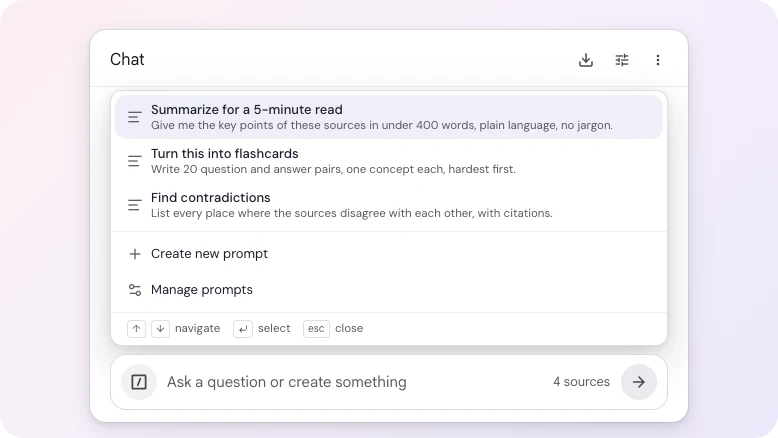
Reuse your best prompts
Stop retyping the same prompt. Save it once and use it on any device you sign in on.
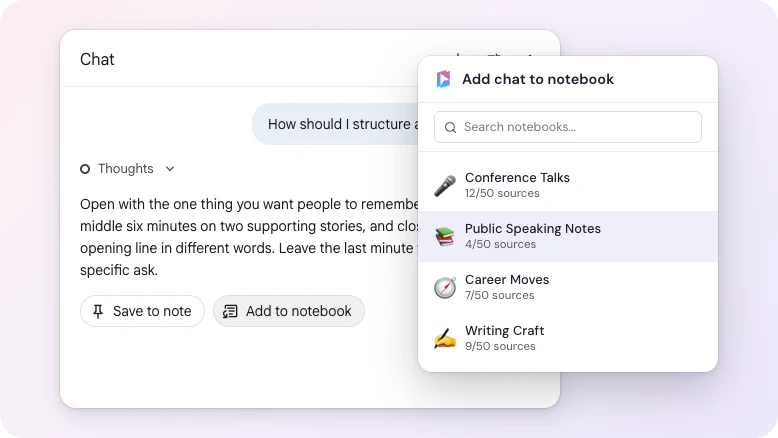
Save a chat as a source
Turn one answer or a whole conversation into a source, in any notebook you pick.
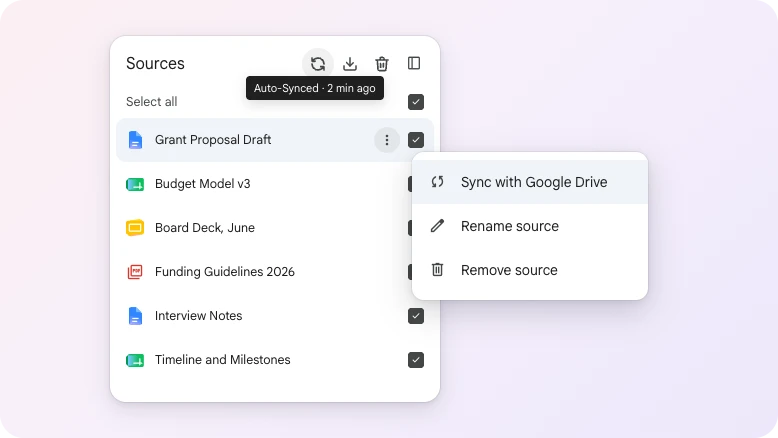
Keep Google Drive sources in sync
Edit the document and the source updates too, so your notebook never quotes an old draft.
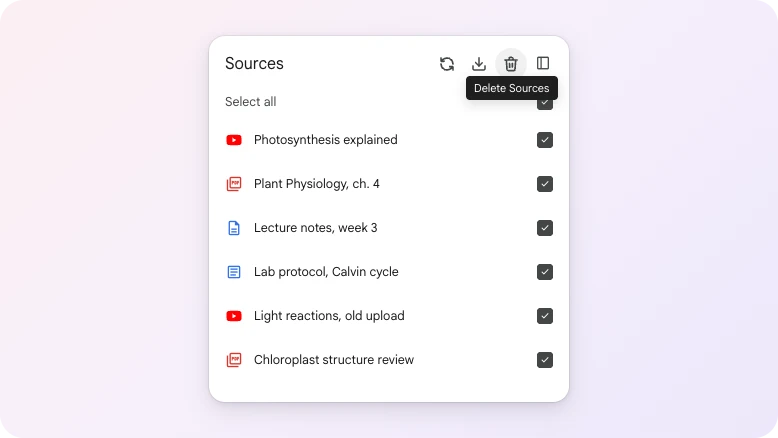
Delete sources in bulk
Tick what you don’t need and clear it in one pass.
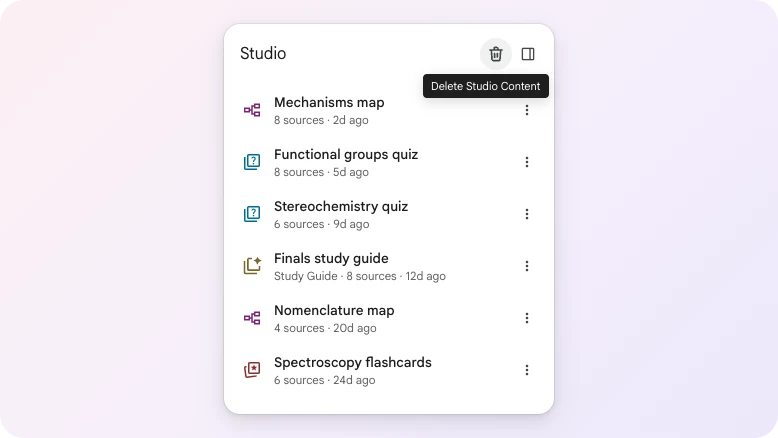
Delete artifacts in bulk
Clear out the mind maps, quizzes and reports that piled up.
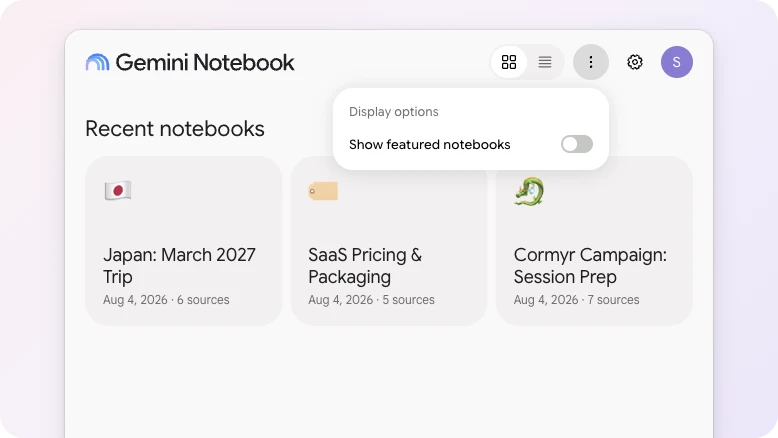
Hide featured notebooks
Keep the home page for your own work. Hide Google's picks, and bring them back whenever you want.
05 · Make it yours
It fits your setup, not the other way round
Nothing here is fixed. Turn off what you don’t need, and make the rest match everything else you already use.
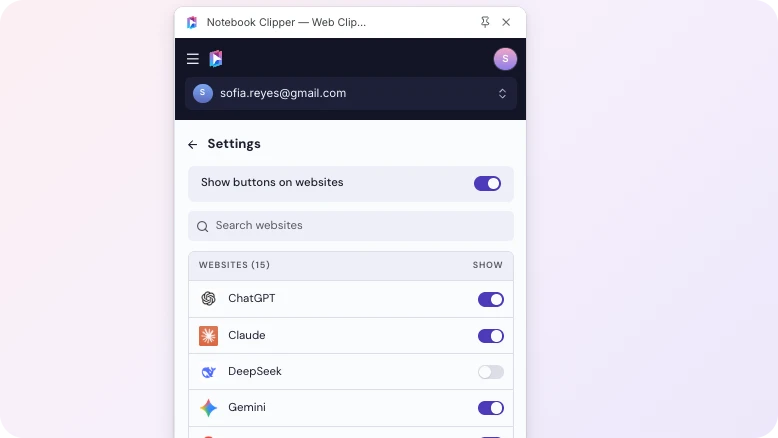
Per-site button settings
Switch the clip button off on the sites where you don't need it.
14 languages supported
Read the extension, the app and this site in your own language.
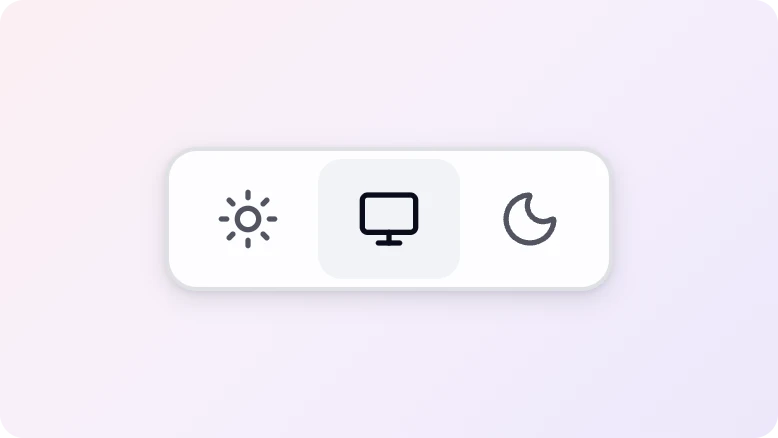
Dark and light theme
Match your system automatically, or pick one yourself.
Ready to Build Your Research Library?
Join thousands of researchers, students, and professionals who use Notebook Clipper to save anything to Gemini Notebook.
4.85/5 · 30,000+ users on Chrome Web Store