


Getting started
Notebook Clipper is a Chrome extension that adds web pages, YouTube videos, AI chats and more to Gemini Notebook (formerly NotebookLM), and brings your notebooks into the Notebook Clipper app. It uses the Google account you are signed in with in your browser. Setting it up takes three steps.
Set up Notebook Clipper
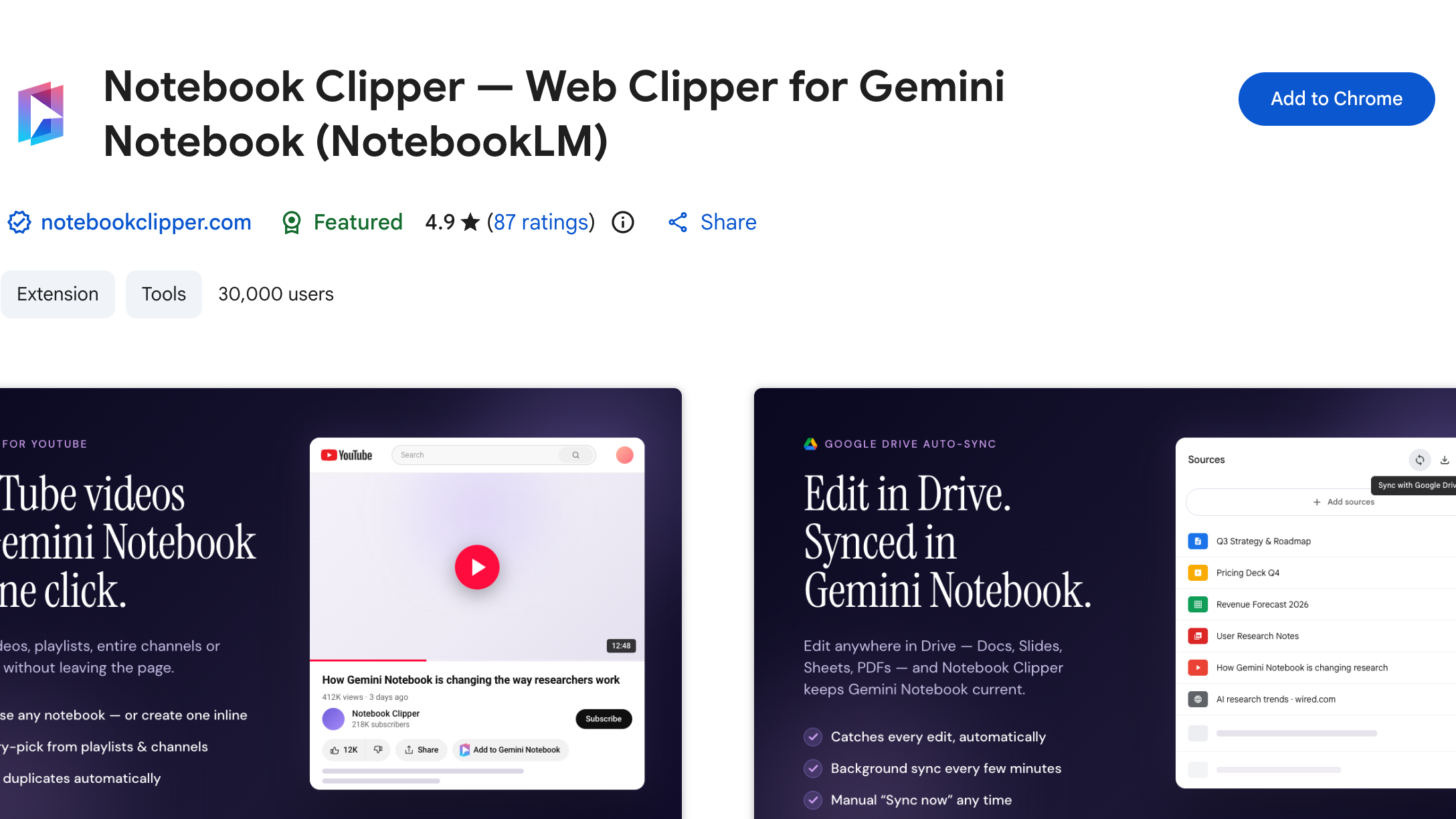
Add Notebook Clipper to Chrome
Open the Chrome Web Store listing and click Add to Chrome, then Add extension. It is free.
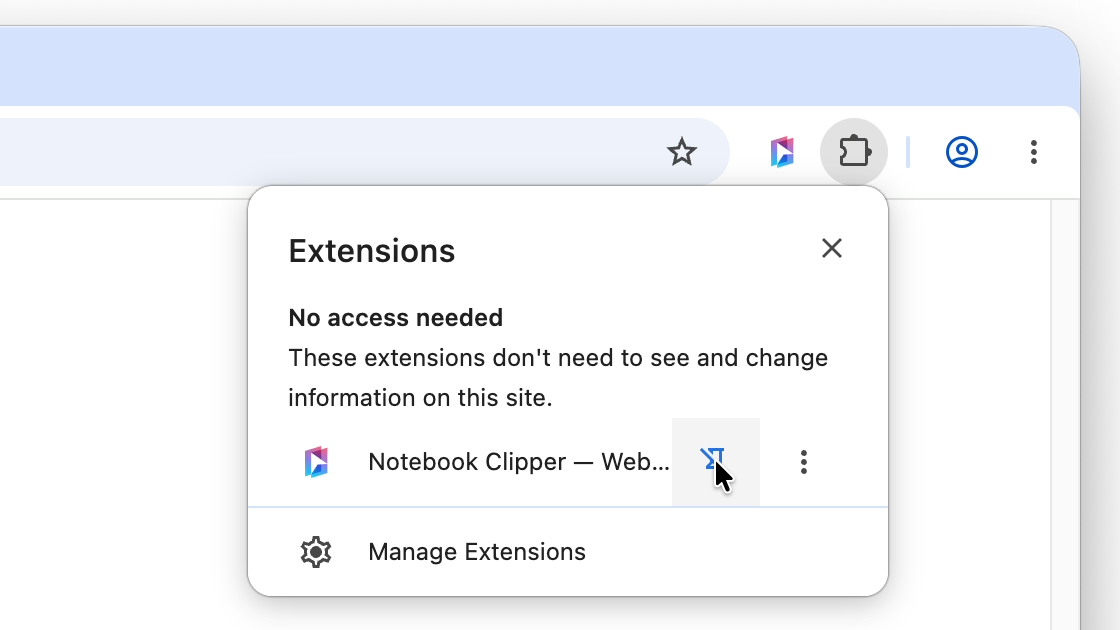
Pin it to the toolbar
Click the puzzle-piece icon in your browser’s toolbar, then the pin next to Notebook Clipper. The icon opens the side panel from any page.
Sign in to Gemini Notebook in your browser
Open Gemini Notebook and sign in with your Google account. Notebook Clipper uses that account; there is no separate account to create.
Find your guide
The guides are organised by where you are when you use Notebook Clipper.
On the web
The side panel on any page, and the buttons on YouTube, X, Reddit, the AI chats, PDFs and Google Docs.
See all guidesInside Gemini Notebook
The toolbar Notebook Clipper adds to your notebook: exports, saved prompts, Drive sync, bulk delete, duplicate and merge.
See all guidesIn the Notebook Clipper app
Every notebook, source and artifact in one place, collections, search, and your podcasts.
See all guides