


Dodaj kanał YouTube
Notebook Clipper dodaje filmy z kanału YouTube do notatnika w Gemini Notebook (dawniej NotebookLM), po jednym źródle na film i z dołączoną transkrypcją. Odczytuje karty Filmy, Shorts i Na żywo na kanale. Filmy, które już są w notatniku, są pomijane, więc ponowne dodanie tego samego kanału do tego samego notatnika nigdy nie tworzy duplikatów. Kanał musi być publiczny.
Dodaj kanał
Kanał możesz dodać do Gemini Notebook na dwa sposoby.
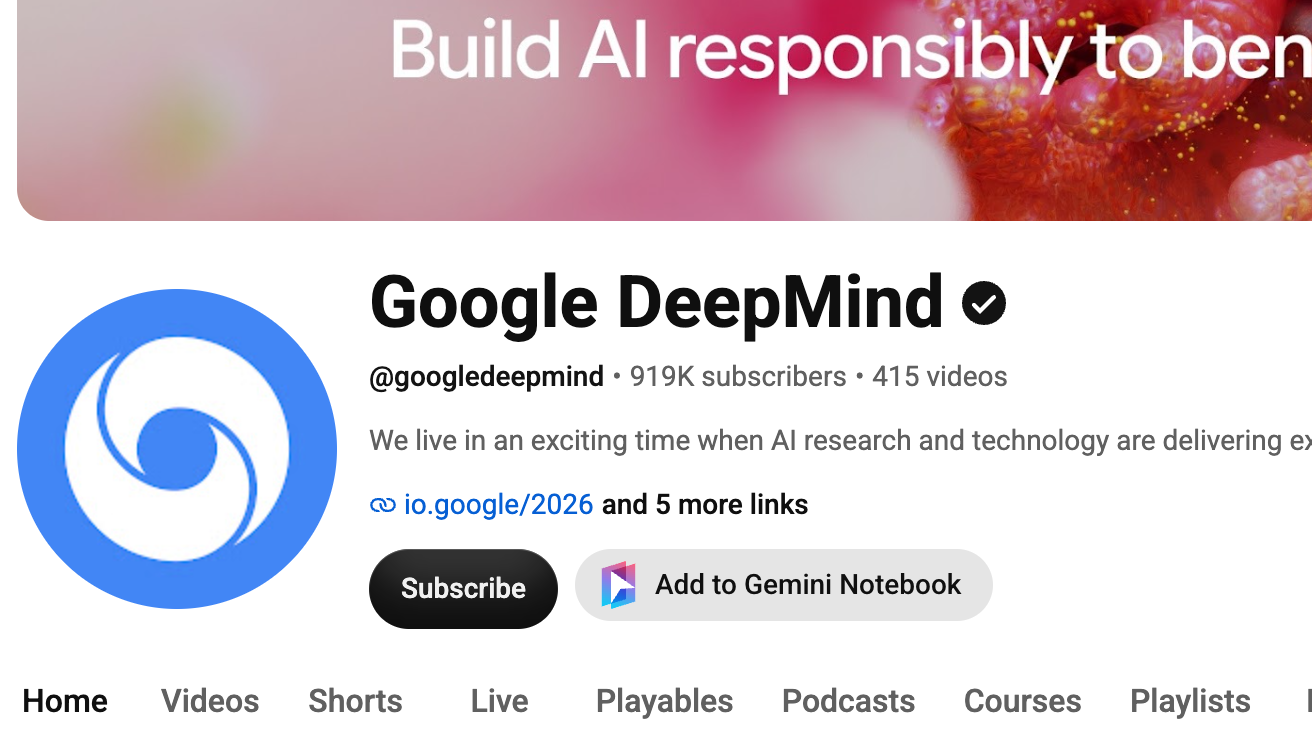
Kliknij Dodaj do Gemini Notebook w nagłówku kanału
Przycisk znajduje się obok opcji Subskrybuj. Najpierw rozszerzenie pobiera wszystkie filmy z kanału. Powiadomienie pokazuje postęp, a w przypadku dużych kanałów może to chwilę potrwać. Po zakończeniu otworzy się okno dialogowe Dodaj do notatnika.
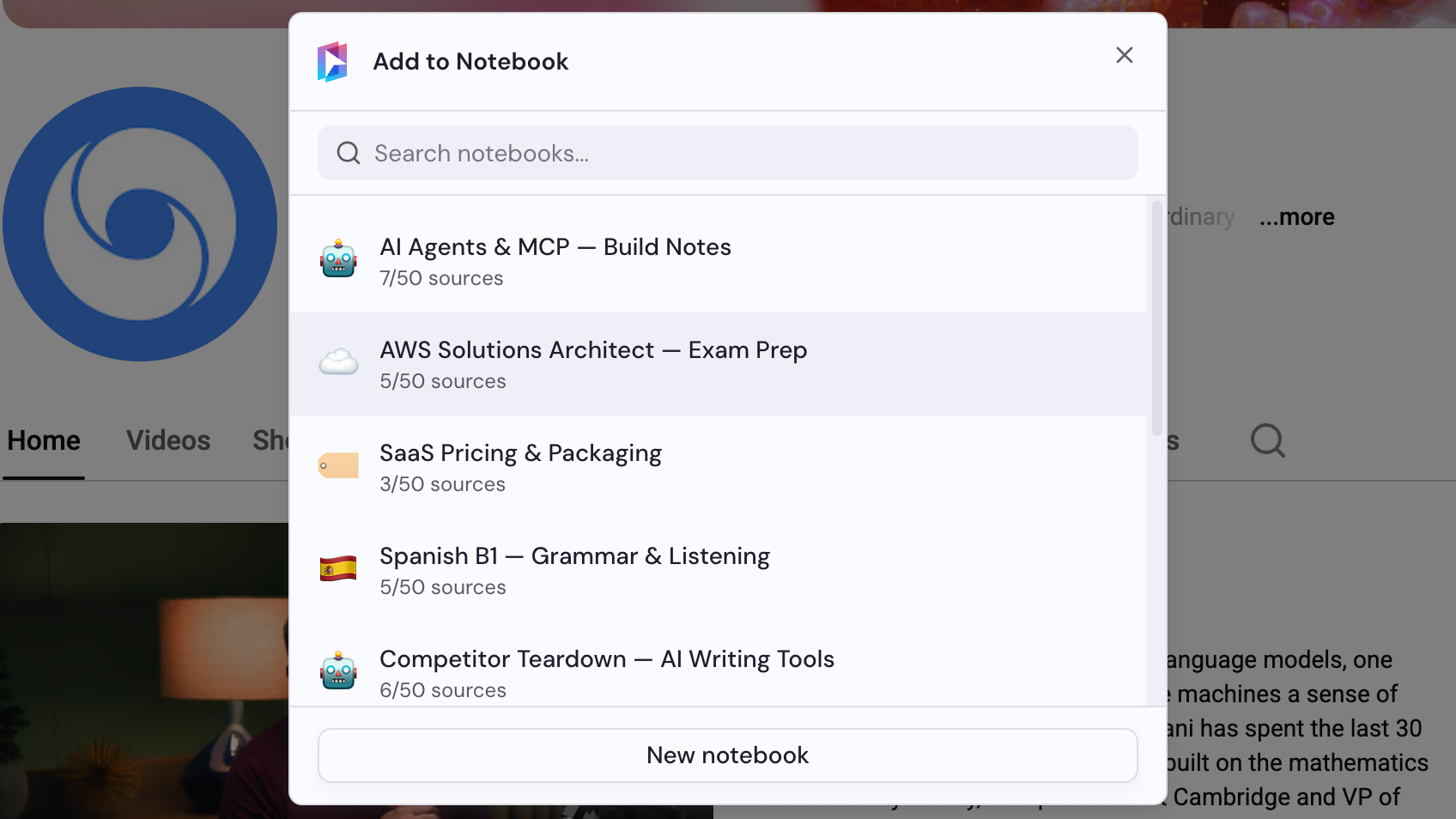
Wybierz notatnik
W oknie dialogowym Dodaj do notatnika wybierz notatnik albo kliknij Nowy notatnik, aby go utworzyć. Jeśli wszystkie nowe filmy się zmieszczą, zostaną od razu dodane, a okno dialogowe się zamknie.
Wybierz filmy, jeśli pojawi się prośba
Jeśli na kanale jest więcej nowych filmów, niż mieści się w notatniku, okno dialogowe poprosi Cię o wybór. Wybierz filmy, które chcesz dodać.
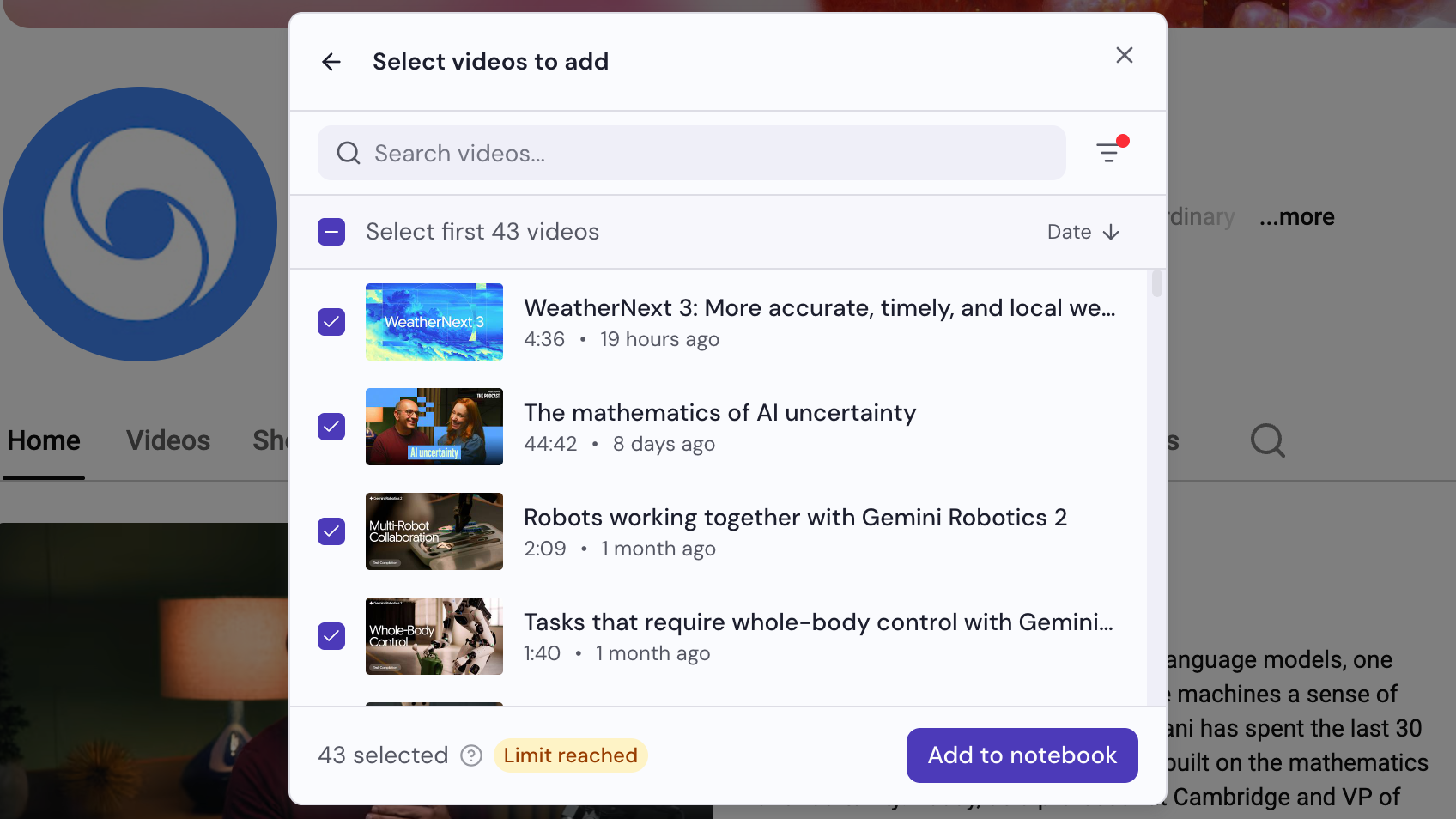
Kliknij Dodaj do notatnika
Przycisk znajduje się na dole okna dialogowego. Jeśli na etapie 2 zmieściły się wszystkie filmy, są już dodane i nie musisz nic klikać.