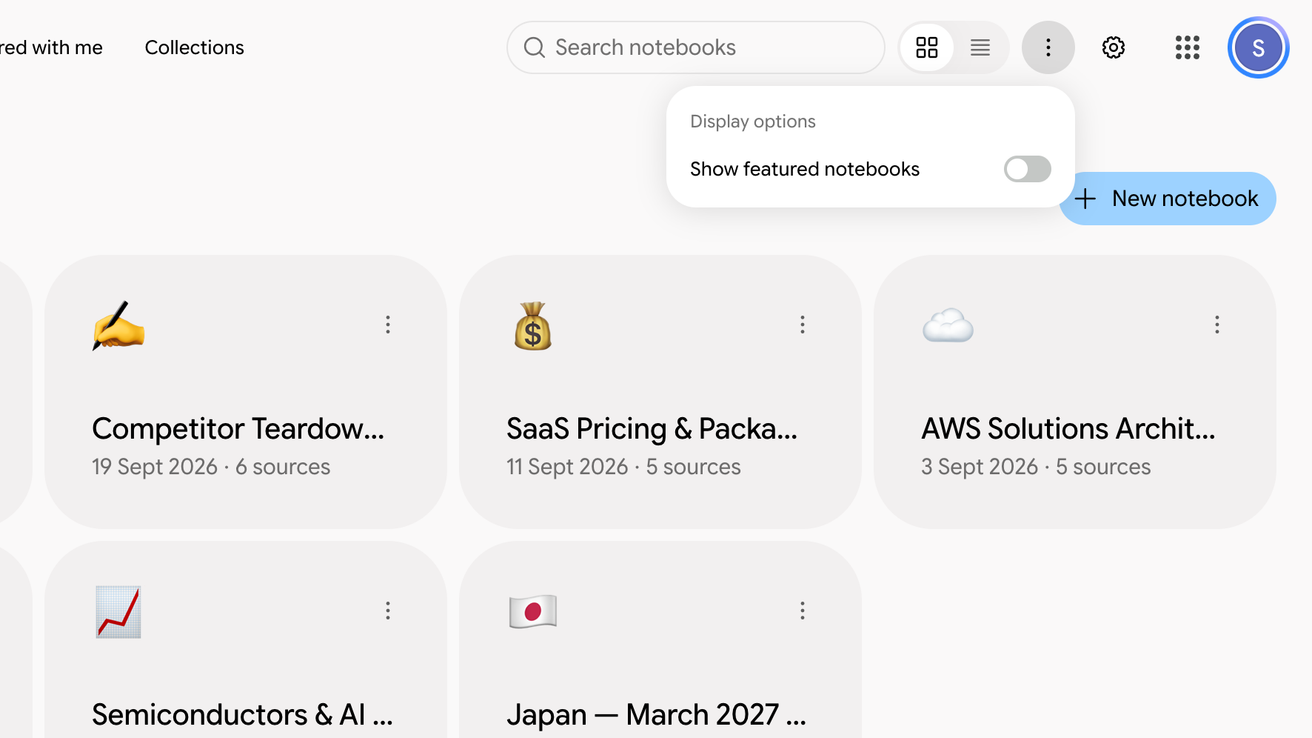
Hide featured notebooks
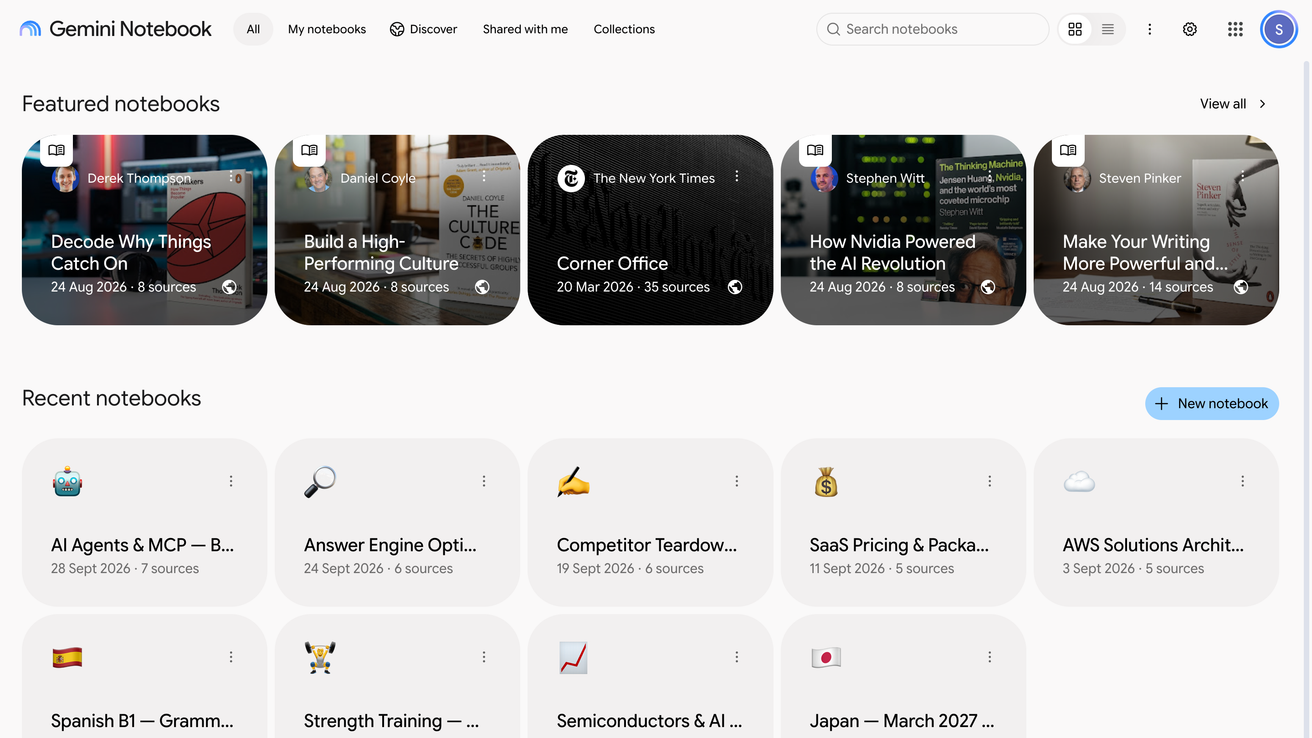
Notebook Clipper lets you hide the Featured notebooks shelf on the home page of Gemini Notebook (formerly NotebookLM), so the page opens on your own notebooks instead of Google’s picks. The shelf stays hidden until you show it again, and the featured notebooks remain accessible from the Discover tab.
Hide the featured notebooks
Open the Gemini Notebook home page
Featured notebooks is the shelf Google shows on the All tab.
Click More at the top right, then turn off Show featured notebooks
More is the three-dot icon before the gear icon, and it opens the Display options menu. To show the shelf again, turn the switch back on.