


Export an artifact
Notebook Clipper adds export formats that Gemini Notebook (formerly NotebookLM) does not offer itself to the menu of each item in a notebook’s Studio panel, so a mind map, a report, a quiz, flashcards, a data table or a slide deck can leave the notebook as a file you open in another app, in the formats the table below lists.
Export the artifact
Click More on the item in the Studio panel
More is the three-dot icon at the right of the item. The menu opens with the export formats above Gemini Notebook’s own items.
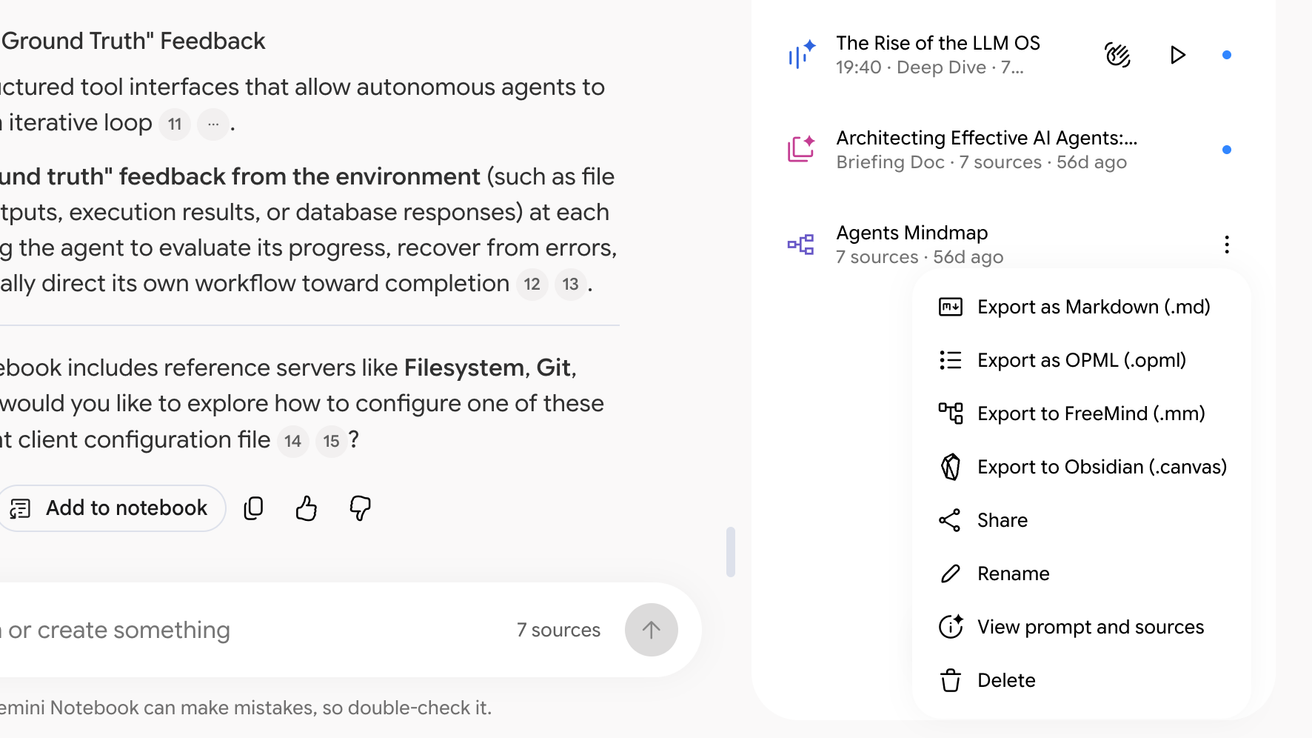
Click the format
The file downloads in the format you picked, and the table below lists the supported formats for each item.
Formats per item
| Mind map | Obsidian (.canvas), FreeMind (.mm), OPML (.opml), Markdown (.md) |
|---|---|
| Flashcards | Anki (.tsv), Excel (.xlsx), JSON (.json) |
| Quiz | Anki (.tsv), Excel (.xlsx), JSON (.json) |
| Report | PDF (.pdf), Markdown (.md), Word (.docx) |
| Note | Word (.docx), Markdown (.md) |
| Data table | Excel (.xlsx), Markdown (.md) |
| Slide deck | Images (.zip, one PNG per slide) |
For Anki, import the .tsv file with File, Import, fields separated by Tab, field 1 as Front and field 2 as Back.