


Manage your notebooks
Notebook Clipper lists every notebook of the Google account you use with Gemini Notebook (formerly NotebookLM), in the app and in the side panel, with the same actions in both: create, rename, delete, and open the notebook in Gemini Notebook. A deleted notebook is deleted from Gemini Notebook with its sources, and there is no undo.
Manage the notebooks
There are two places to manage your notebooks.
Open the app on Notebooks
In the Notebook Clipper app, click Notebooks in the sidebar.
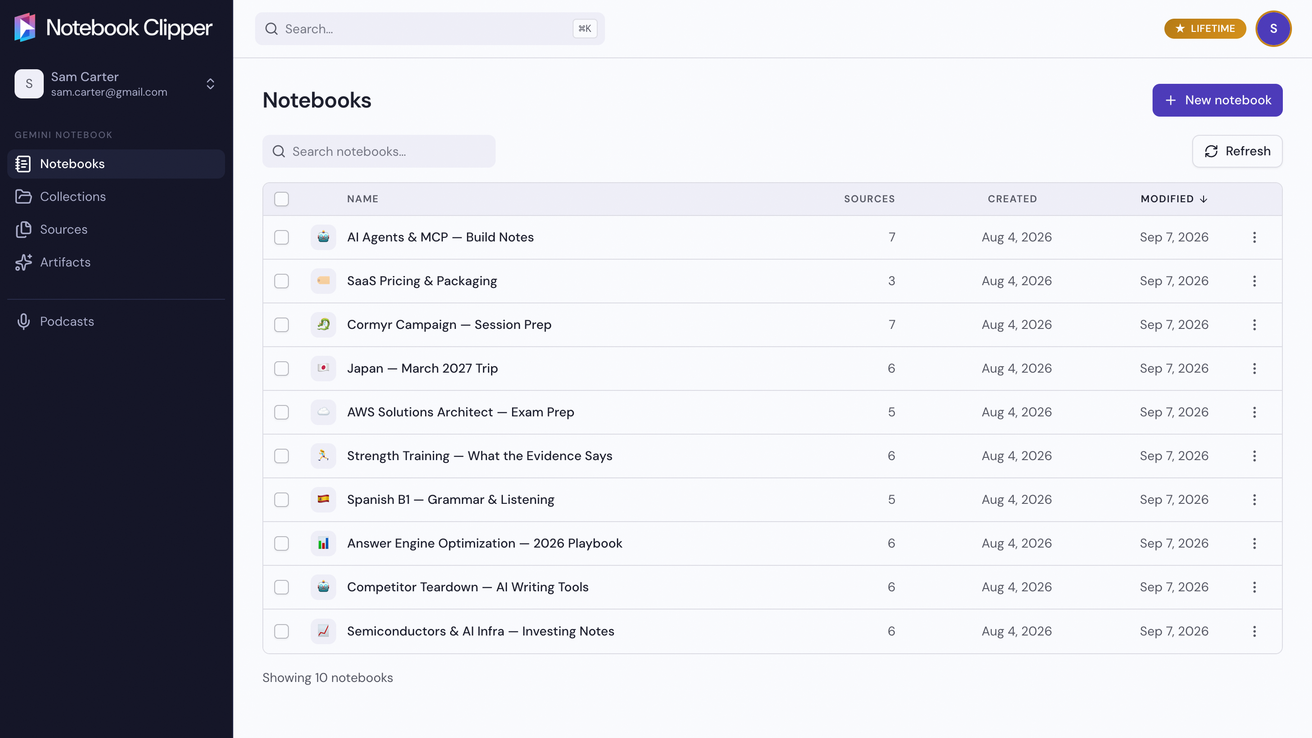
To create one, click New notebook
The button is at the top right of the page. Enter a title, then click Create.
To rename or delete one, click More on its row
More is the three-dot icon at the right end of the row. The menu also opens the notebook in Gemini Notebook.
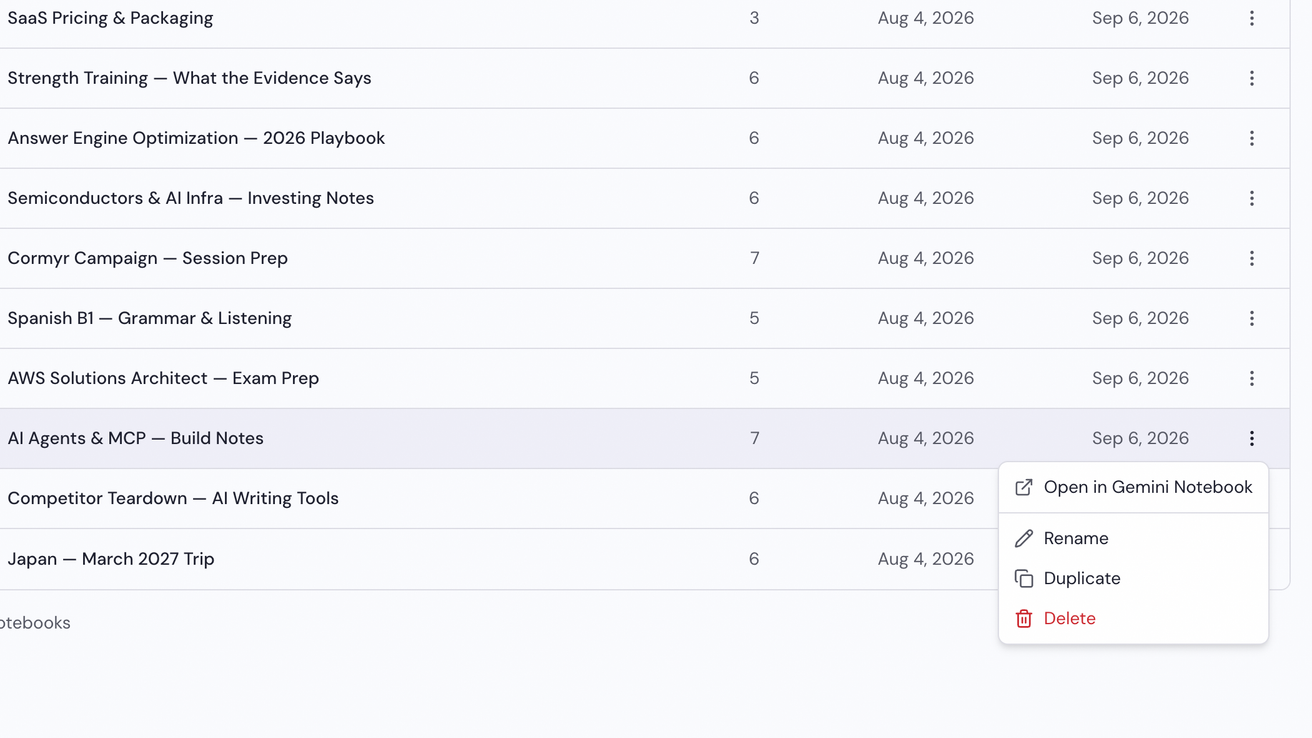
Enter the new name, or confirm the deletion
Rename asks for the new name and saves it with Save, while Delete asks you to confirm before the notebook and all of its sources are deleted from Gemini Notebook.