Add a PDF
Notebook Clipper adds a PDF open in your browser to a notebook in Gemini Notebook (formerly NotebookLM) as one source. Gemini Notebook fetches the file from its address, so the PDF must be hosted online and reachable without requiring to sign in.
Add the PDF
There are two ways to add a PDF to Gemini Notebook.
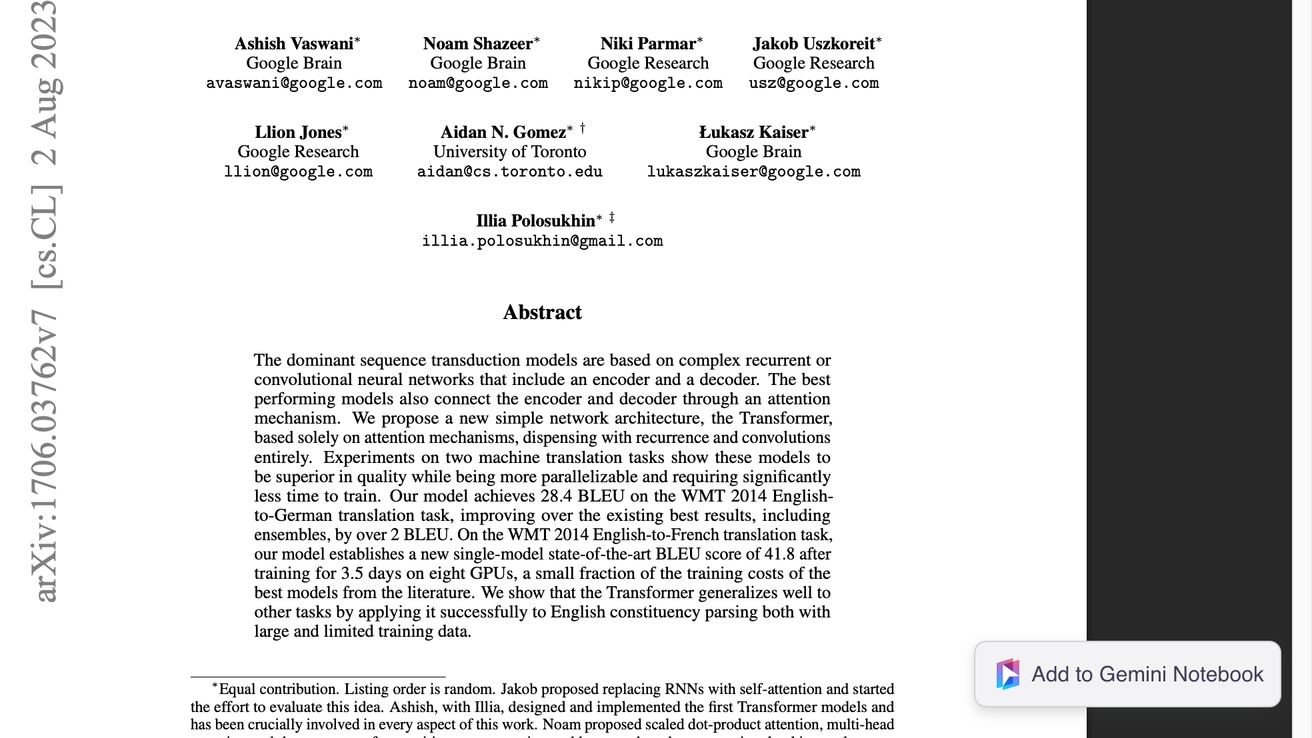
Click
 Add to Gemini Notebook at the bottom right
The button floats in the lower right corner of the PDF and shows its name when you hover it. The Add to Notebook dialog opens.
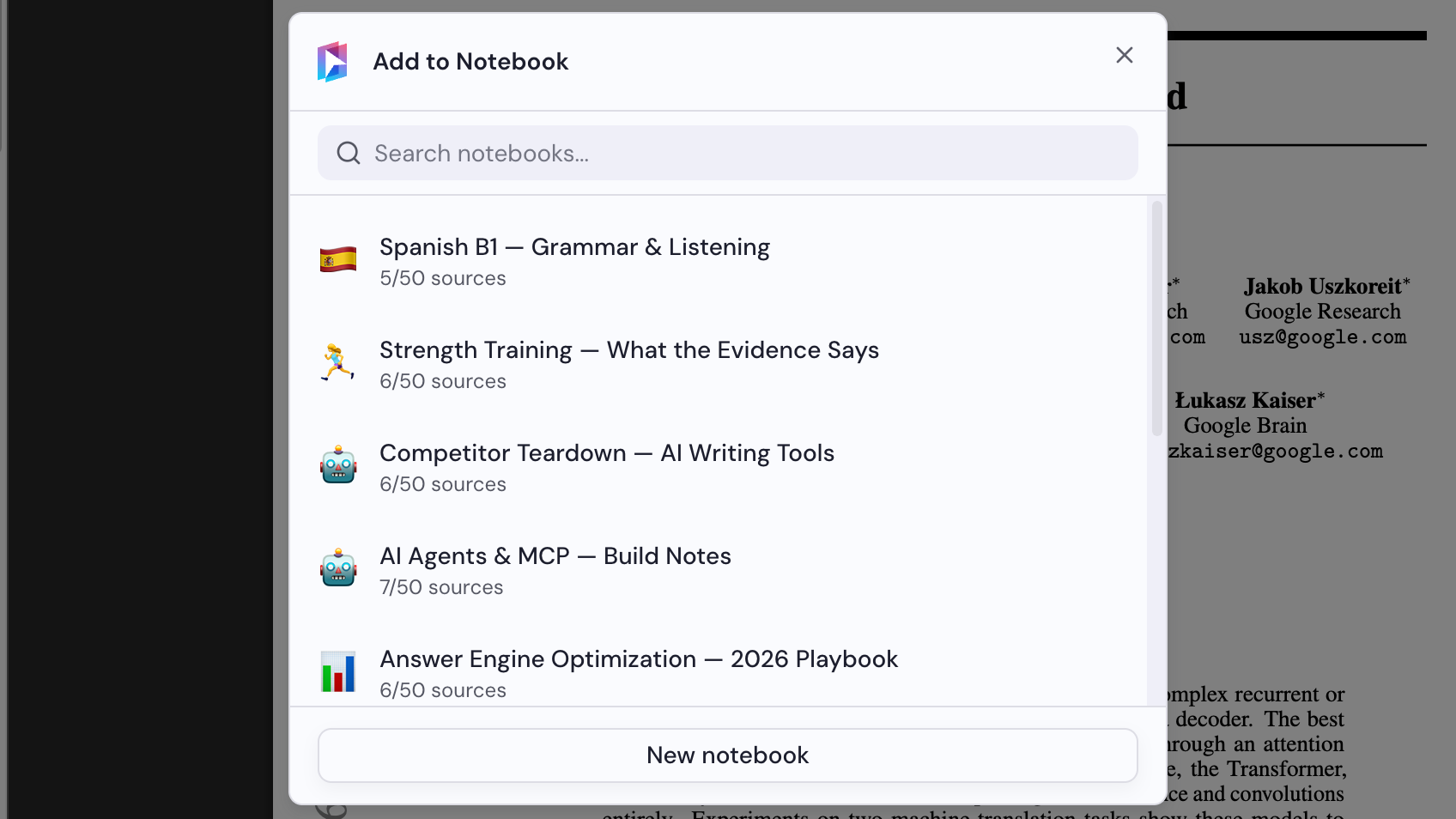
Select a notebook
Choose a notebook in the Add to Notebook dialog, or click New notebook to create one. The PDF is added as soon as you select a notebook.