Keep Google Drive sources in sync
Notebook Clipper lets you refresh the Google Docs, Sheets and Slides sources of a notebook in Gemini Notebook (formerly NotebookLM) with what the document holds now, so the notebook keeps up with a document that is still being edited. You can sync one source from its menu, sync every Drive source at once from the Sources panel header, or turn on auto-sync, which refreshes them every five minutes while the notebook is open. Syncing needs Editor access to the document.
Sync one source
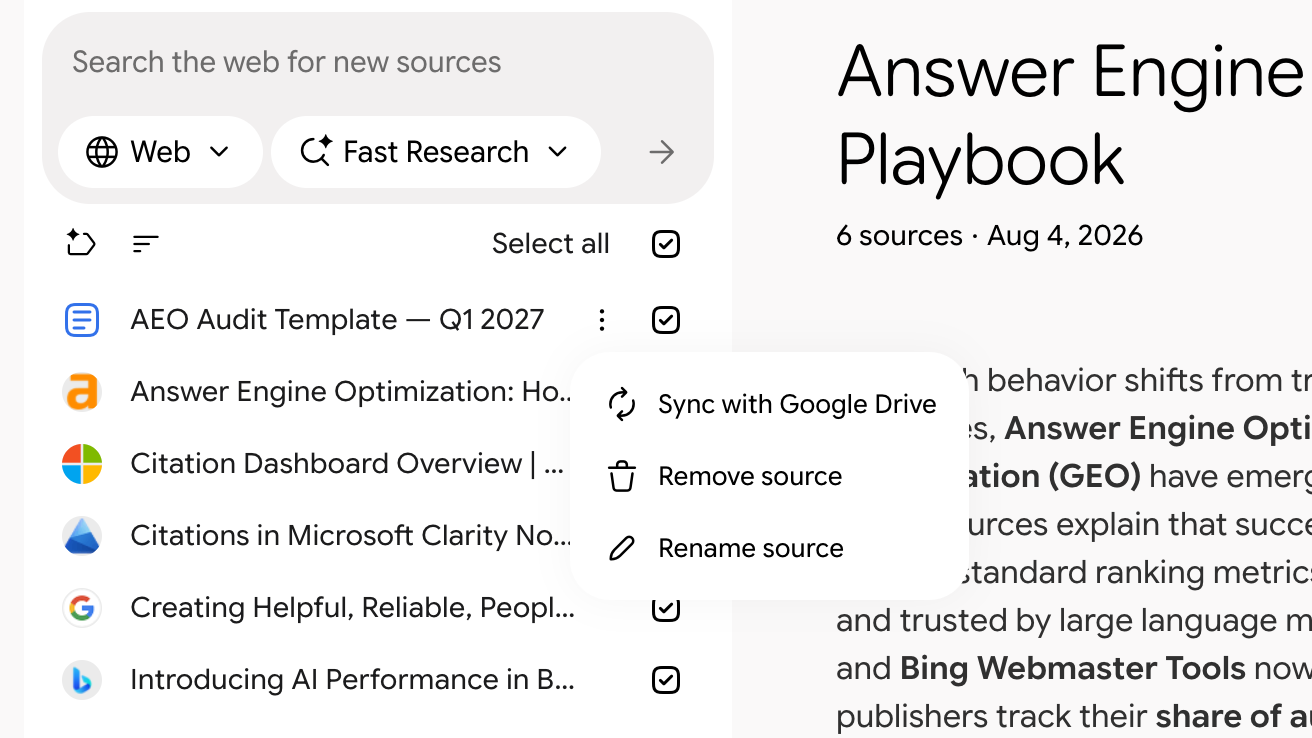
Click More on the source, then Sync with Google Drive
More is the three-dot icon that shows when you rest the pointer on a source in the Sources panel, and Sync with Google Drive is its first item. The source is refreshed from the document in Drive, or left as it is when it was already up to date.
Sync every Drive source
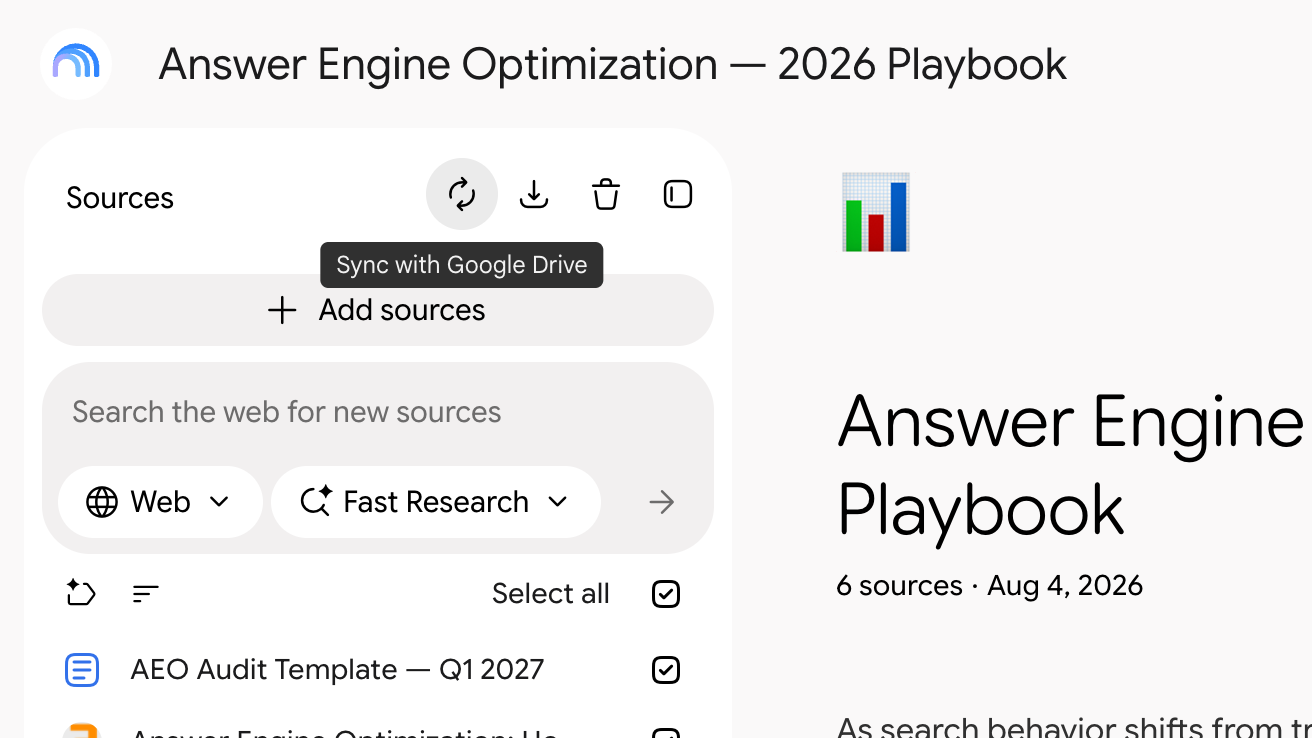
Click Sync with Google Drive in the Sources panel header
It is the first of the three icons at the right of the panel header. After a sync its tooltip shows when the last one ran.
Turn on auto-sync
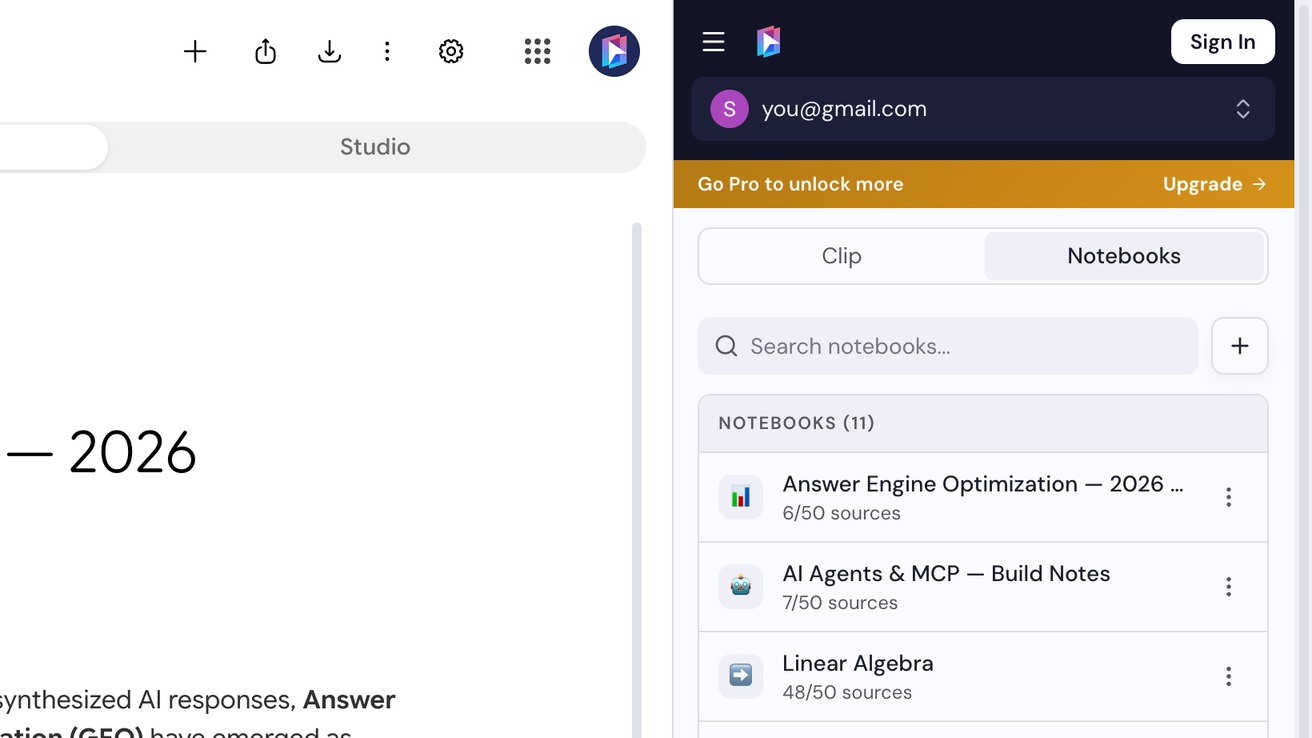
Open the side panel on the Notebooks tab, then open the notebook
Click the Notebook Clipper icon in your browser’s toolbar, click Notebooks, then click the notebook in the list.
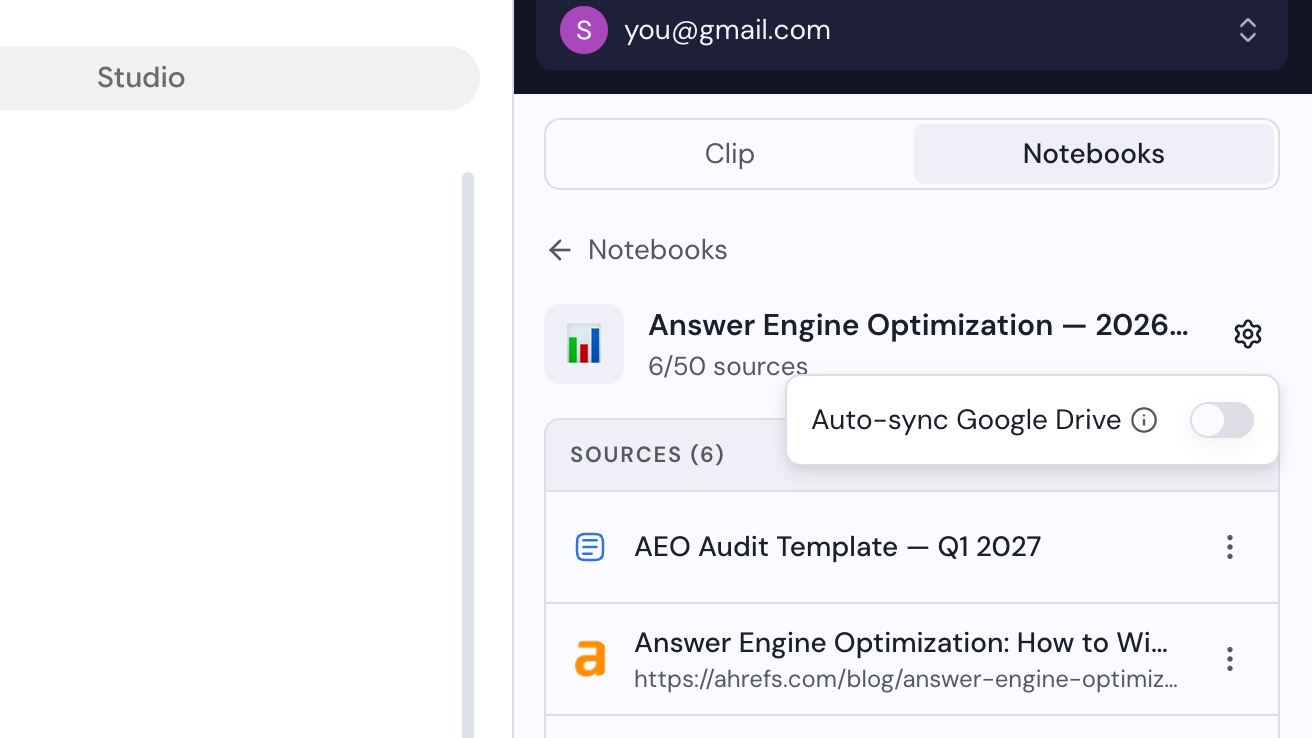
Click the gear icon, then turn on Auto-sync Google Drive
The gear sits right of the notebook’s name. The switch applies to this notebook only, and it follows you to every browser signed in with the same Google account.