Export your sources
Notebook Clipper lets you export the sources of a notebook in Gemini Notebook (formerly NotebookLM) as files: the text Gemini Notebook extracted from each source, as Markdown, plain text or PDF. A single source downloads as one file, while several download together as a ZIP named after the notebook, with one file per source inside. Sources that are still processing or that failed are left out of the download.
Export the sources
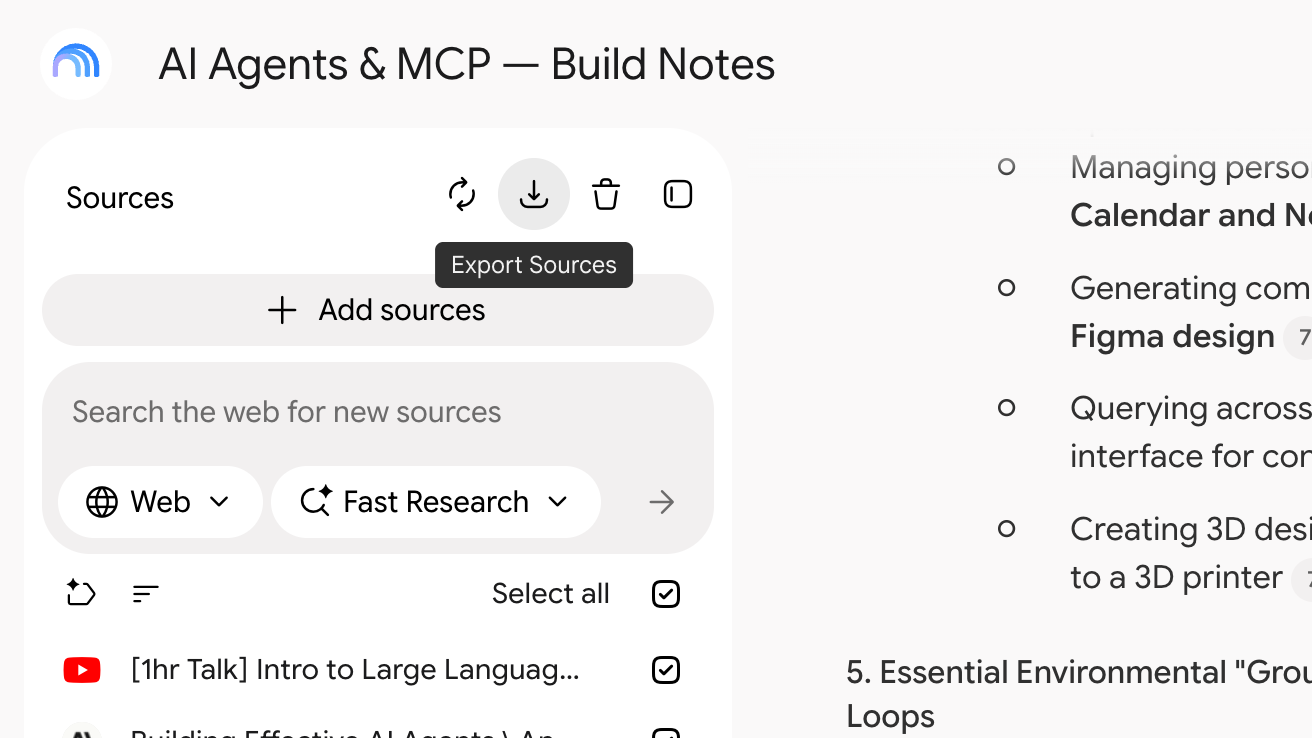
Click Export Sources in the Sources panel header
The button sits between the Google Drive sync icon and the trash icon at the right of the panel header, and shows Export Sources when you hover it. Clicking it opens the Export Sources dialog with every source already selected.
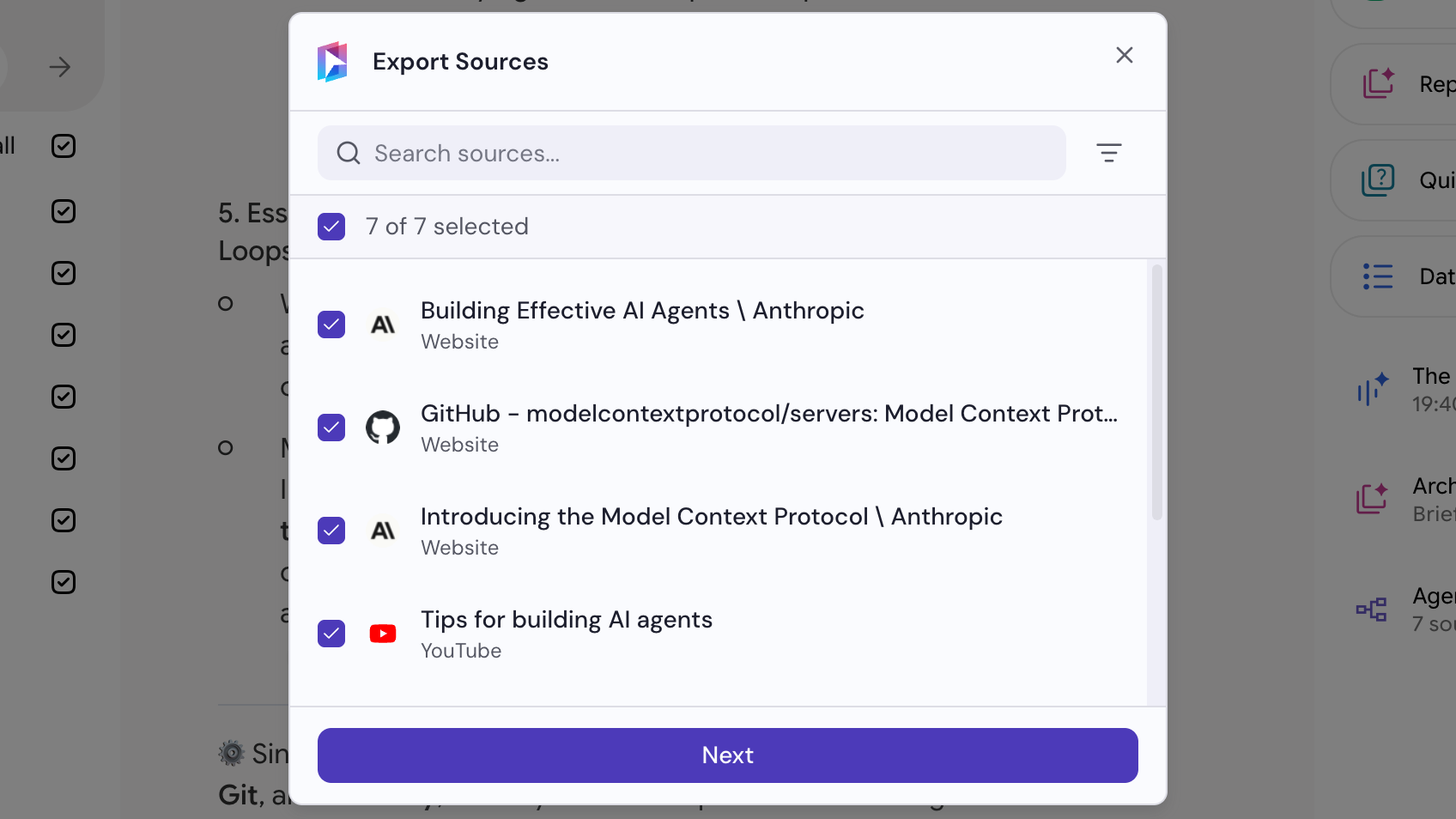
Select the sources, then click Next
Untick the sources you do not want, using the search field and the type filter to narrow the list, while the checkbox in the header selects or clears everything the list currently shows.
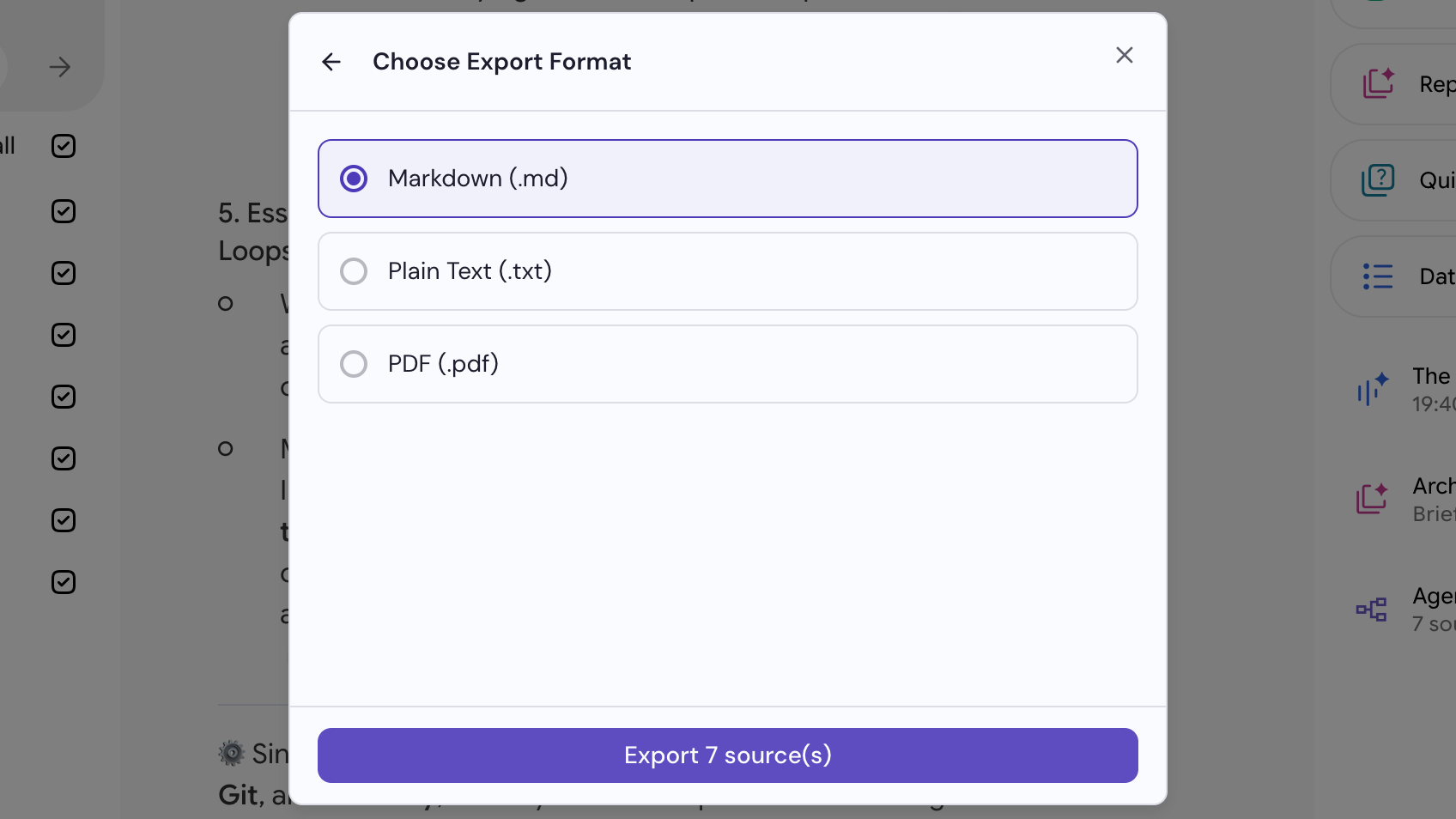
Choose a format, then click Export
Markdown (.md), Plain Text (.txt) or PDF (.pdf). The files download when the export is done.