


Add a web page
The side panel adds the page you are on to a notebook in Gemini Notebook (formerly NotebookLM) as one source, by its address. Gemini Notebook reads the page from that address, so it must be reachable without signing in. Browser pages and local files cannot be added.
Add the page
Open the side panel on the Clip tab
Click the Notebook Clipper icon in your browser’s toolbar. The panel shows the page under Current Tab, with its title and address.
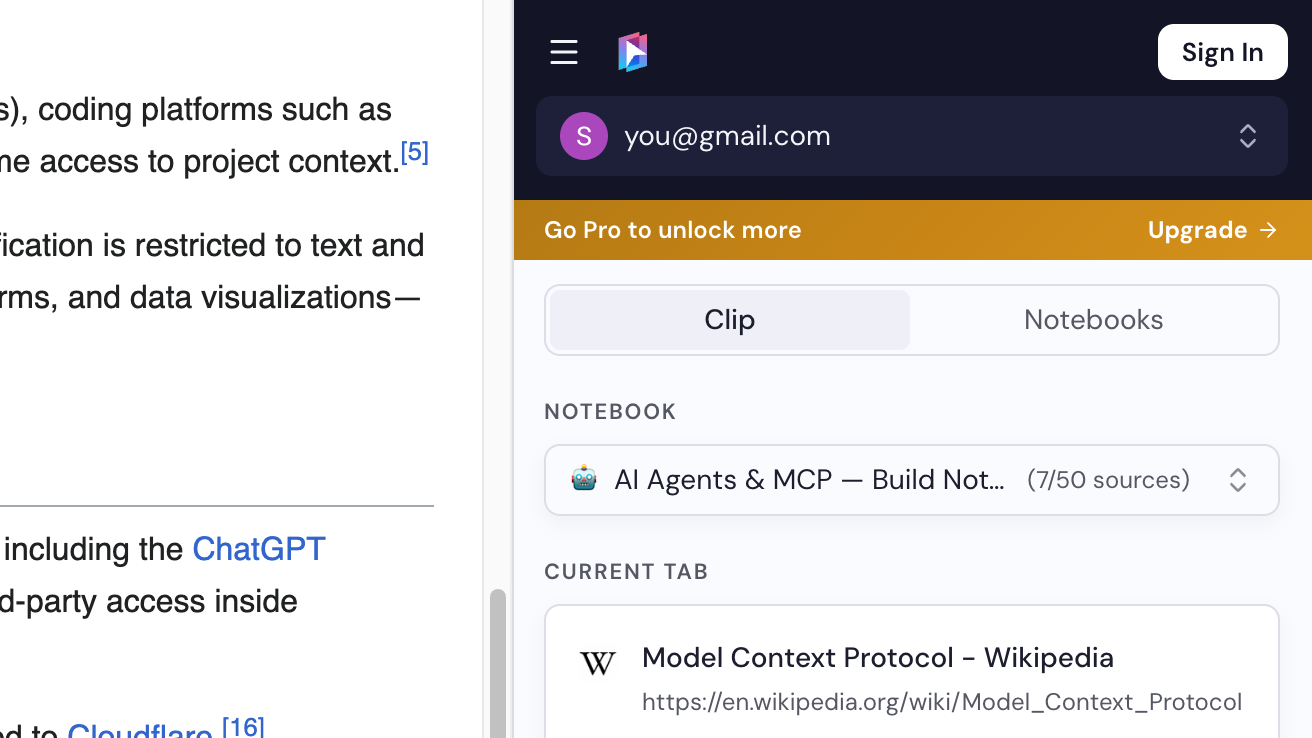
Select a notebook
A notebook is already selected at the top of the panel. Pick another one if you want, or click Create a notebook.
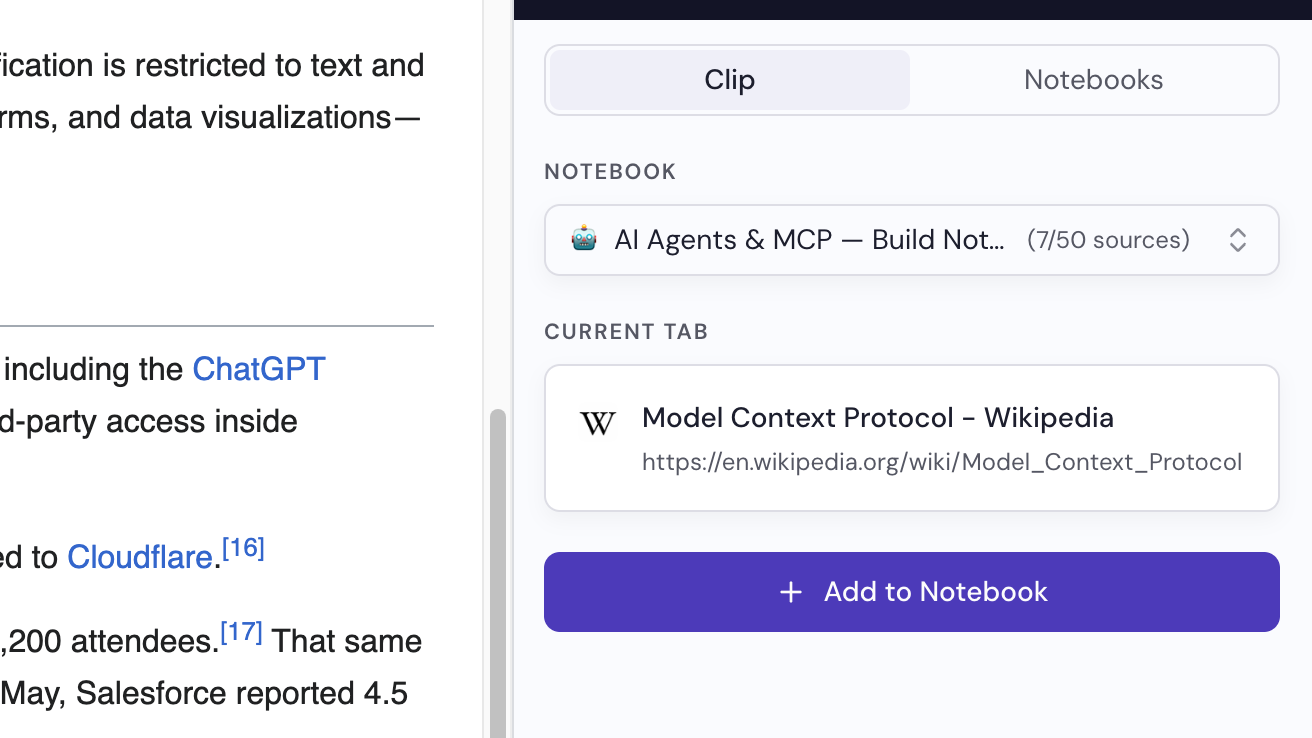
Click Add to Notebook
The page is added as a source. Open the notebook in Gemini Notebook to see it.