Save a chat as a source
Notebook Clipper lets you save an answer, with the question that led to it, or the whole chat of a notebook in Gemini Notebook (formerly NotebookLM) as a text source in any notebook you pick, including the one you are in, so you can build on what the chat worked out in later questions or carry it into another notebook.
Save the chat
There are two ways to save a chat as a source: one answer, or the whole chat.
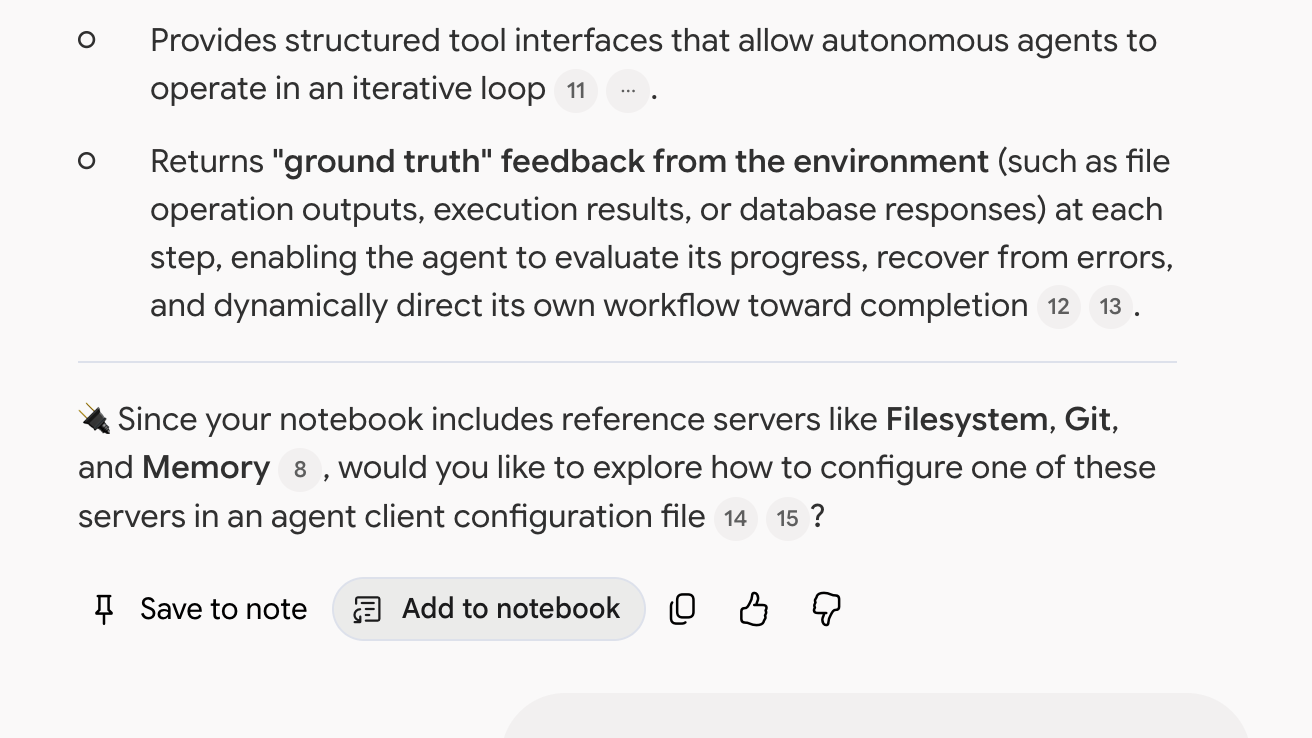
Click Add to notebook under the answer
The button sits right of Gemini Notebook’s own Save to note. The Add chat to notebook dialog opens.
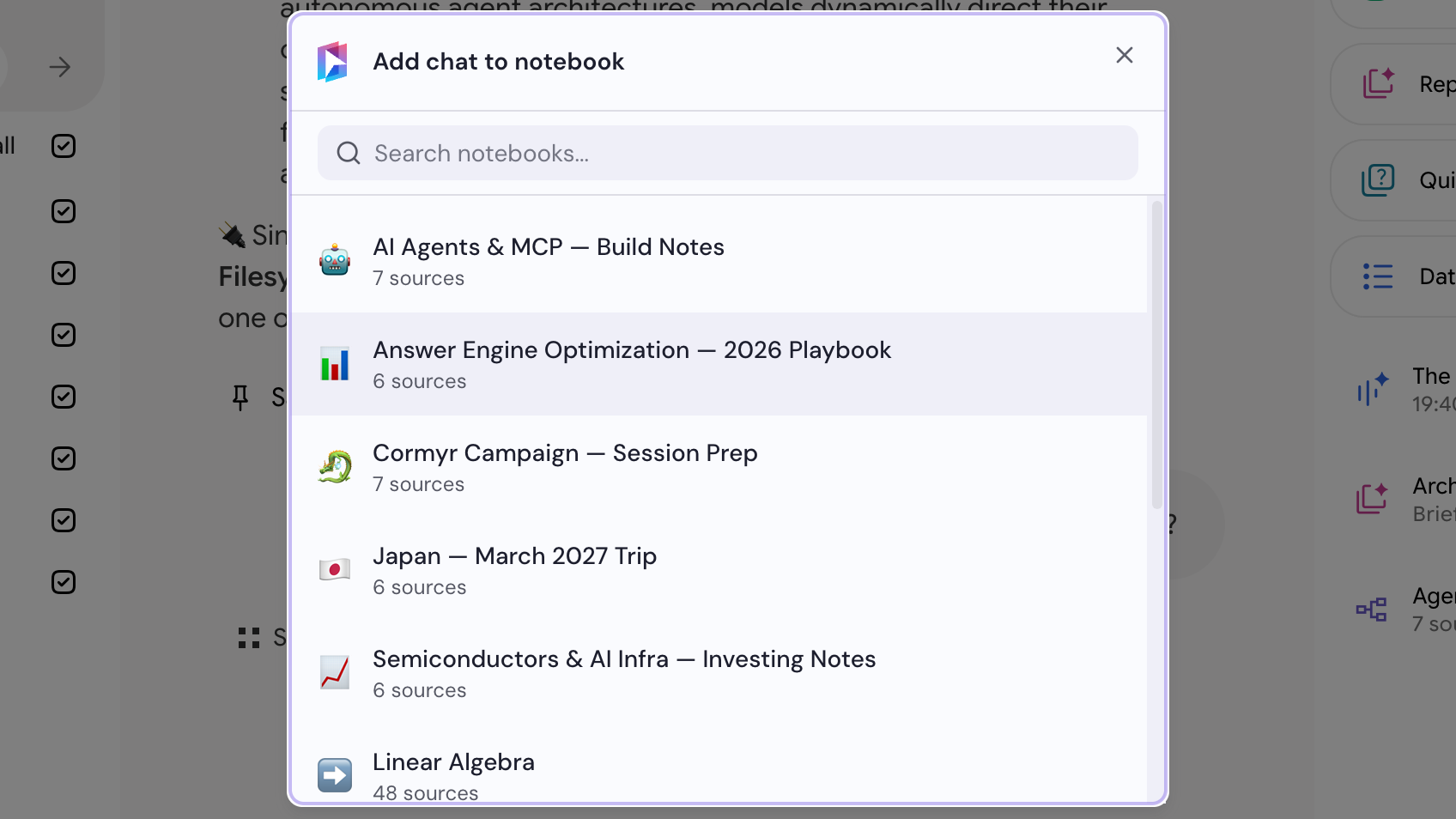
Select a notebook
Choose a notebook in the Add chat to notebook dialog. The notebook you are in is in the list too.
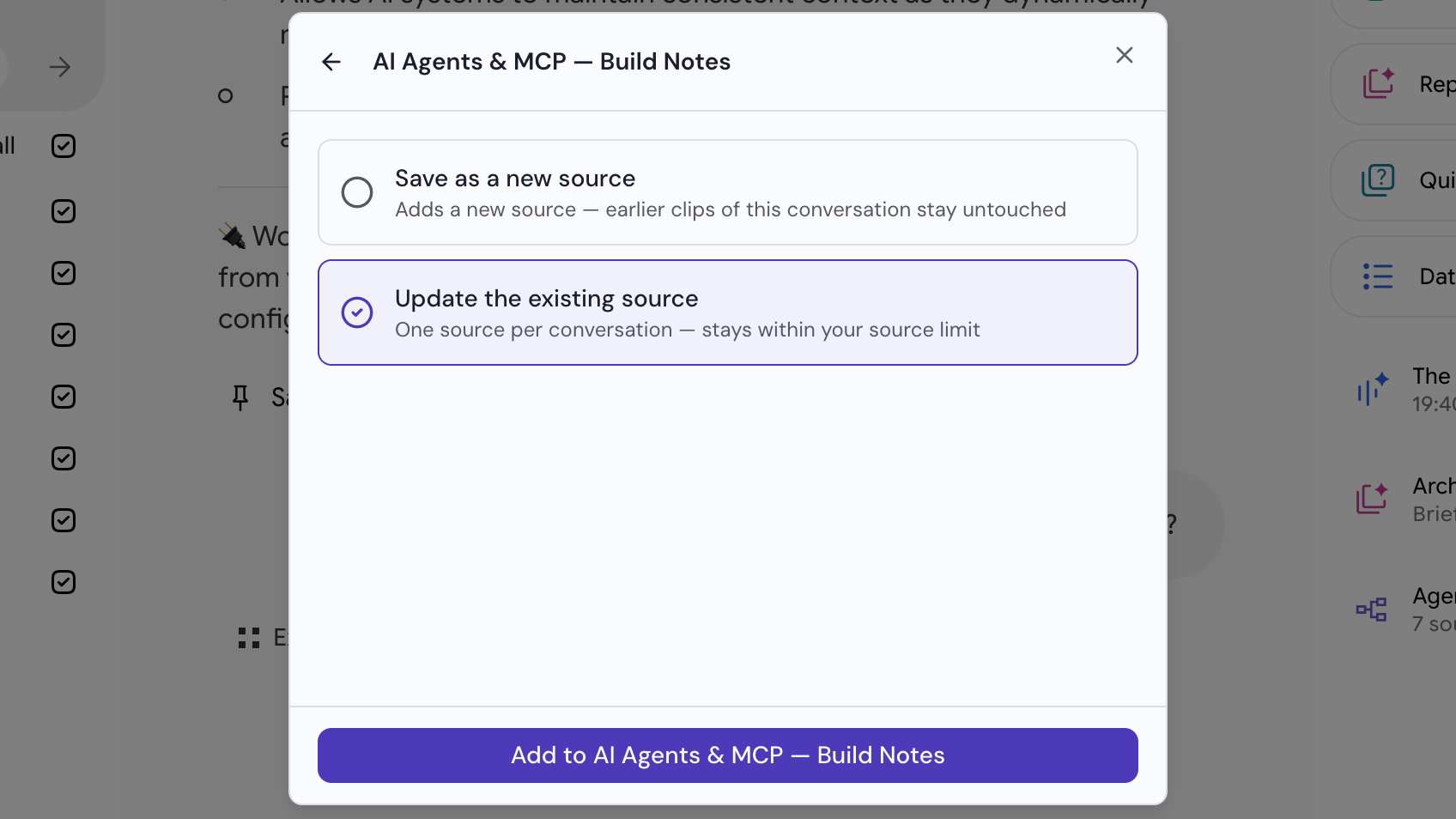
Choose how to save it, then click Add
Choose one: Save as a new source adds a source and leaves earlier ones untouched, while Update the existing source keeps one source per chat. Then click Add.