Add a note.com article
Notebook Clipper adds a note.com article to a notebook in Gemini Notebook (formerly NotebookLM) as one source: the title, the author, the date and the text, without the images. A paid article you have not bought goes in as its free preview.
Add the article
There are two ways to add an article to Gemini Notebook.
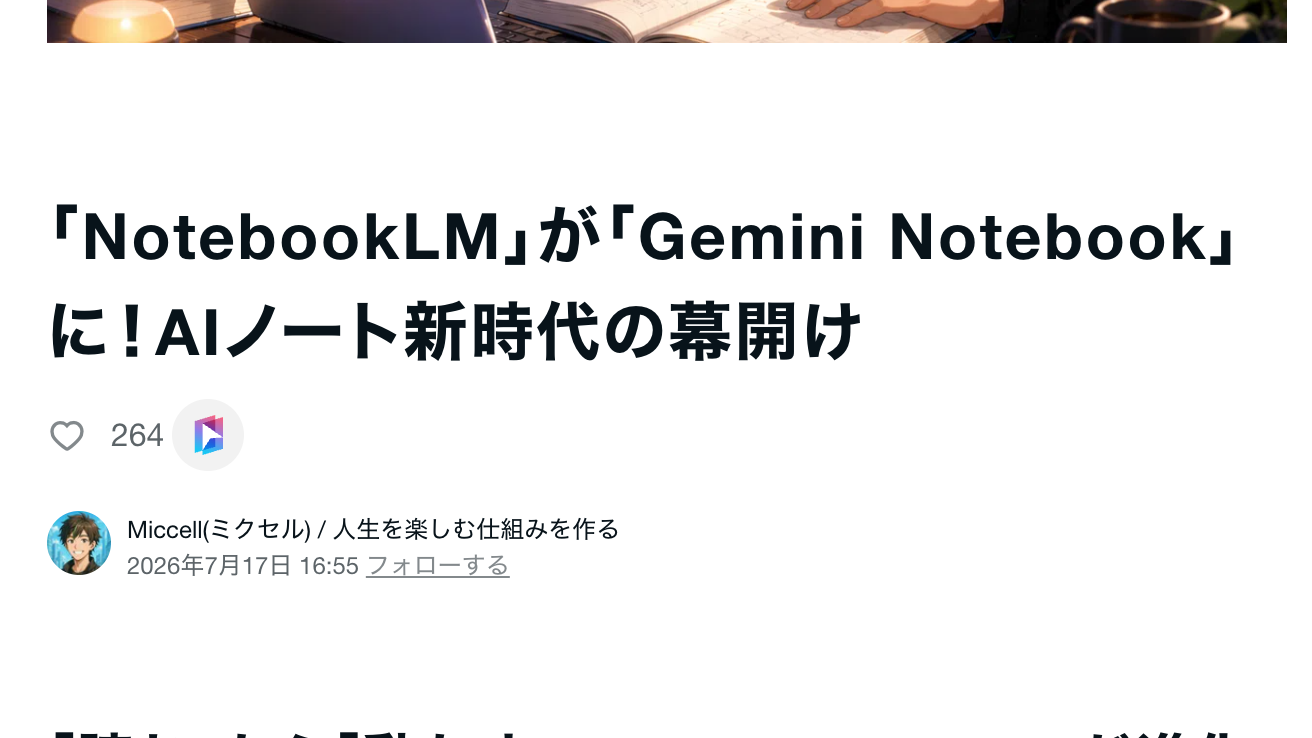
Click
 Add to Gemini Notebook under the title
The icon sits right of the like count under the title. The same icon is in the bar at the bottom right of the window and in the row at the end of the article. The Add to Notebook dialog opens.
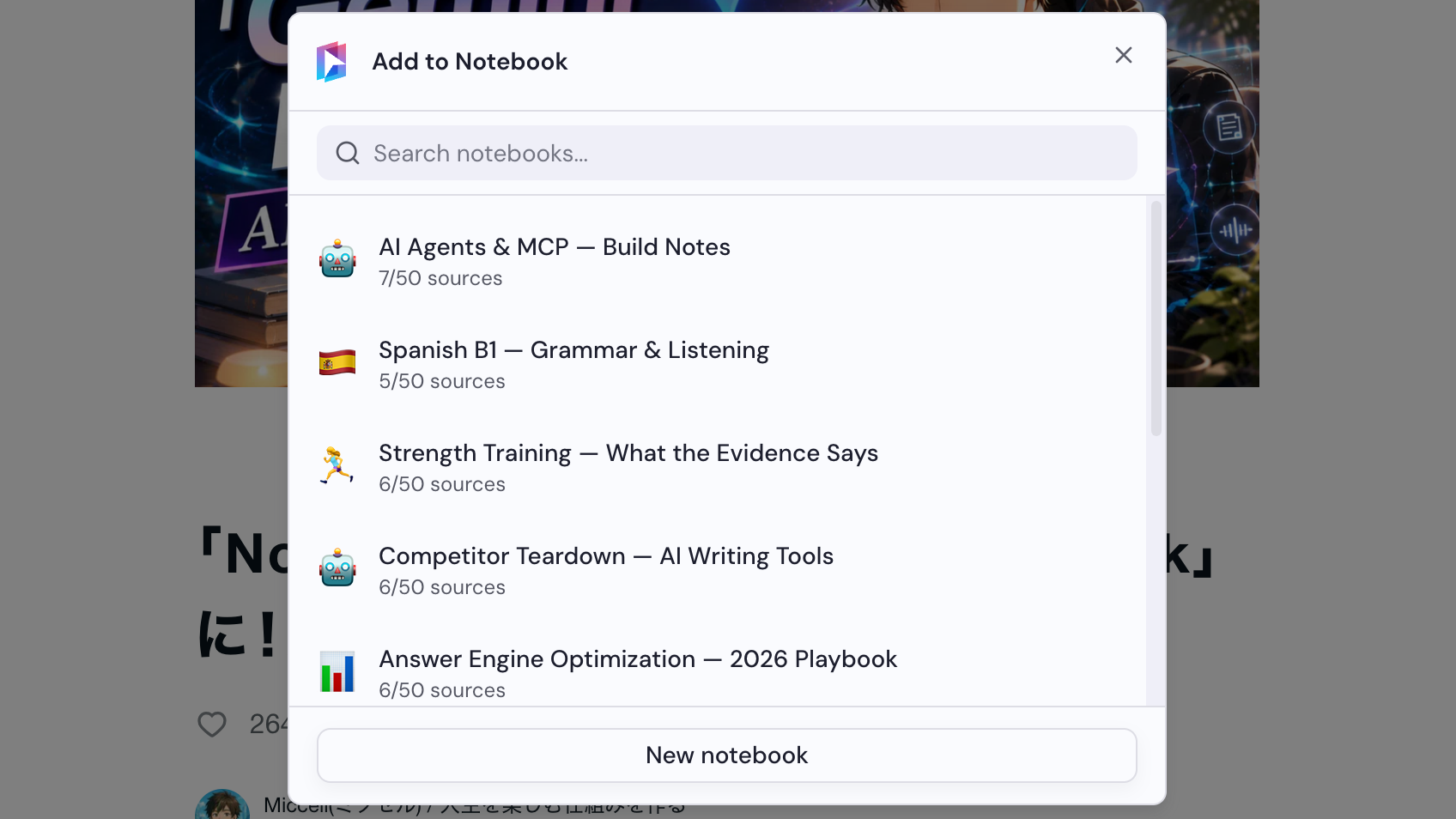
Select a notebook
Choose a notebook in the Add to Notebook dialog, or click New notebook to create one. The article is added as soon as you select a notebook.