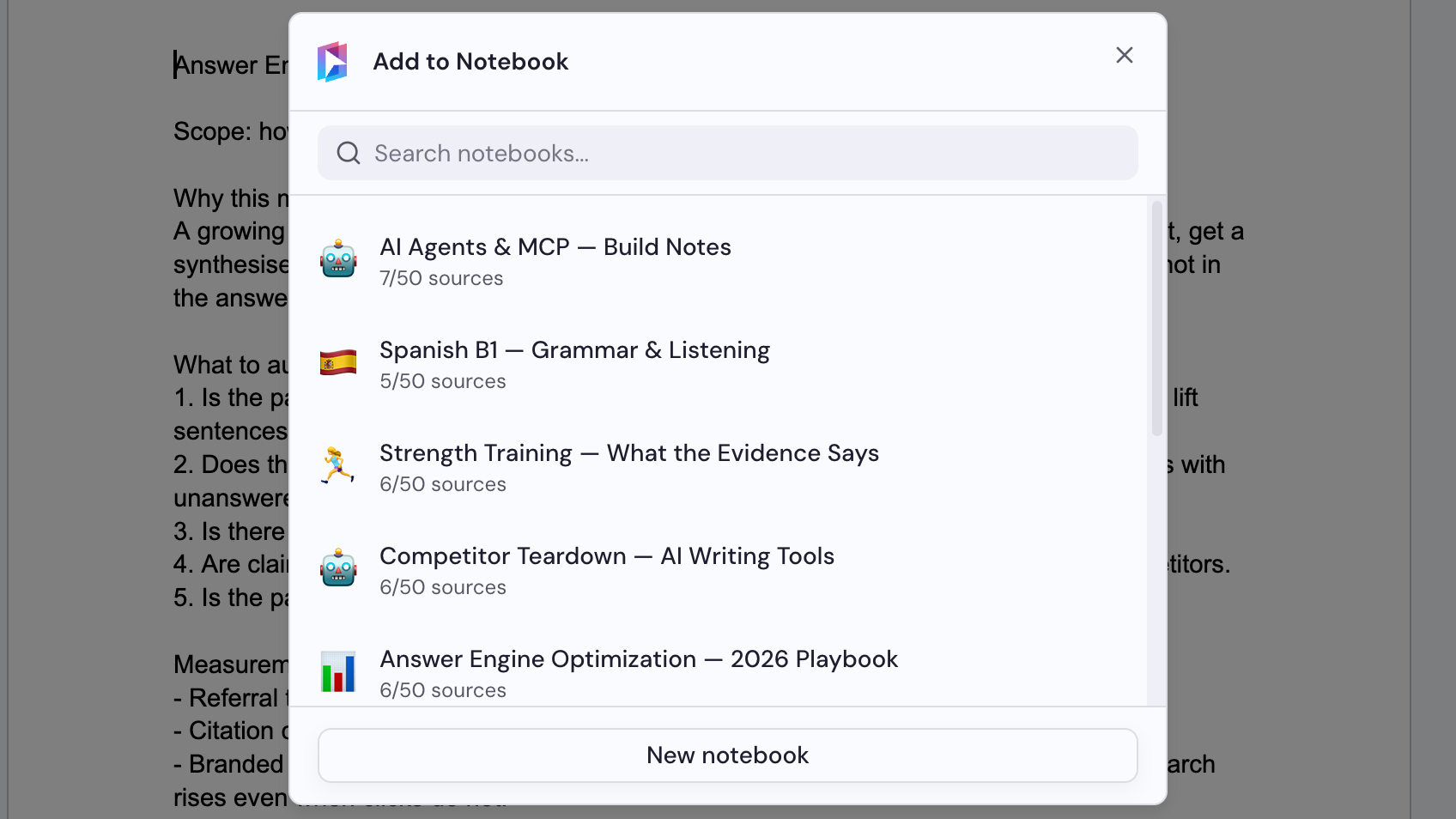
Add a Google Doc, Sheet or Slides deck
Notebook Clipper adds the Google Doc, Sheet or Slides deck you have open to a notebook in Gemini Notebook (formerly NotebookLM). It goes in as a Google Drive source, the same kind you get by picking it from Drive inside the notebook, so nothing is exported or copied. Because the notebook reads it from Drive, the Google account you use with Gemini Notebook must be able to open it, and a document the notebook already has is not added twice. The button and the steps are the same in Docs, Sheets and Slides.
Add the document
There are two ways to add a document to Gemini Notebook.
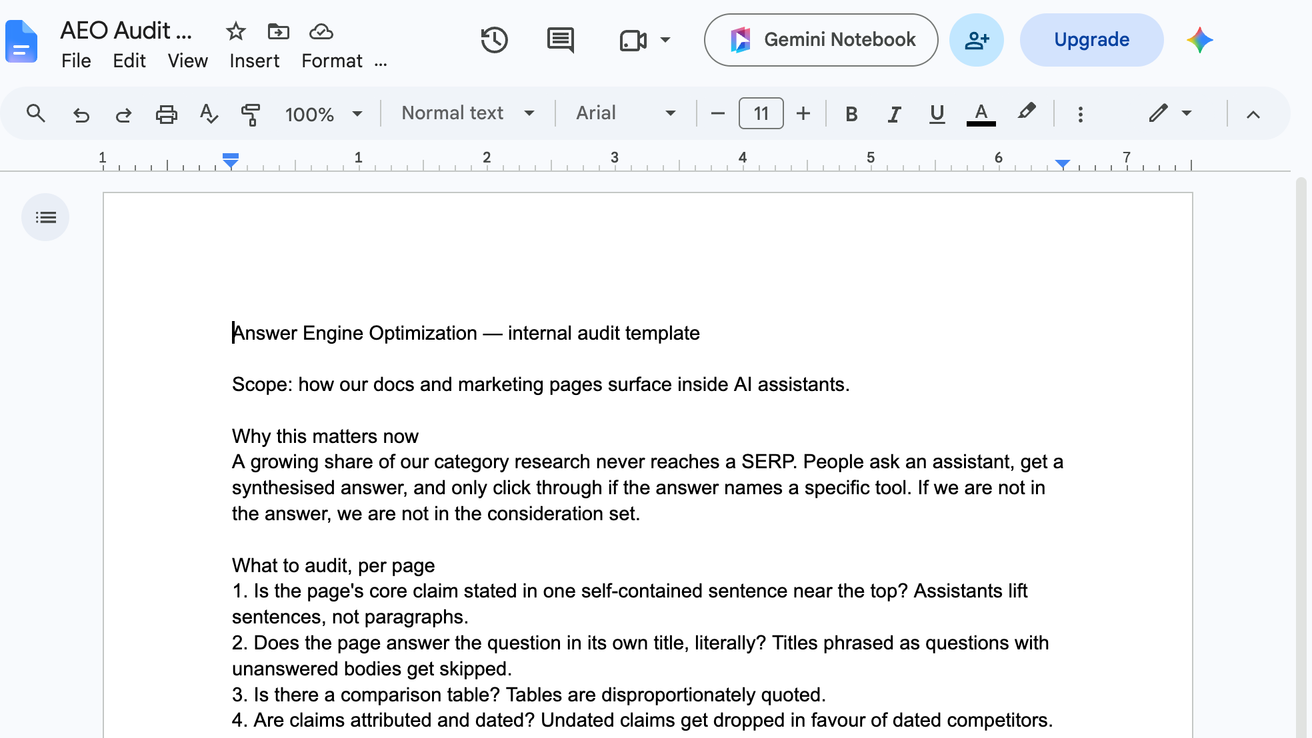
Click Gemini Notebook in the title bar
The button sits left of Share, at the top right of the window. The Add to Notebook dialog opens.
Select a notebook
Choose a notebook in the Add to Notebook dialog, or click New notebook to create one. The document is added as soon as you select a notebook.