


Delete Studio content in bulk
Notebook Clipper lets you delete several items of a notebook’s Studio panel in Gemini Notebook (formerly NotebookLM) in one pass, whether audio and video overviews, mind maps, reports, flashcards, quizzes, infographics, slide decks, data tables or notes, so you can clear out the ones you no longer need without removing them one by one. You choose which items to delete and confirm, and the deletion is permanent, with no undo.
Delete the Studio content
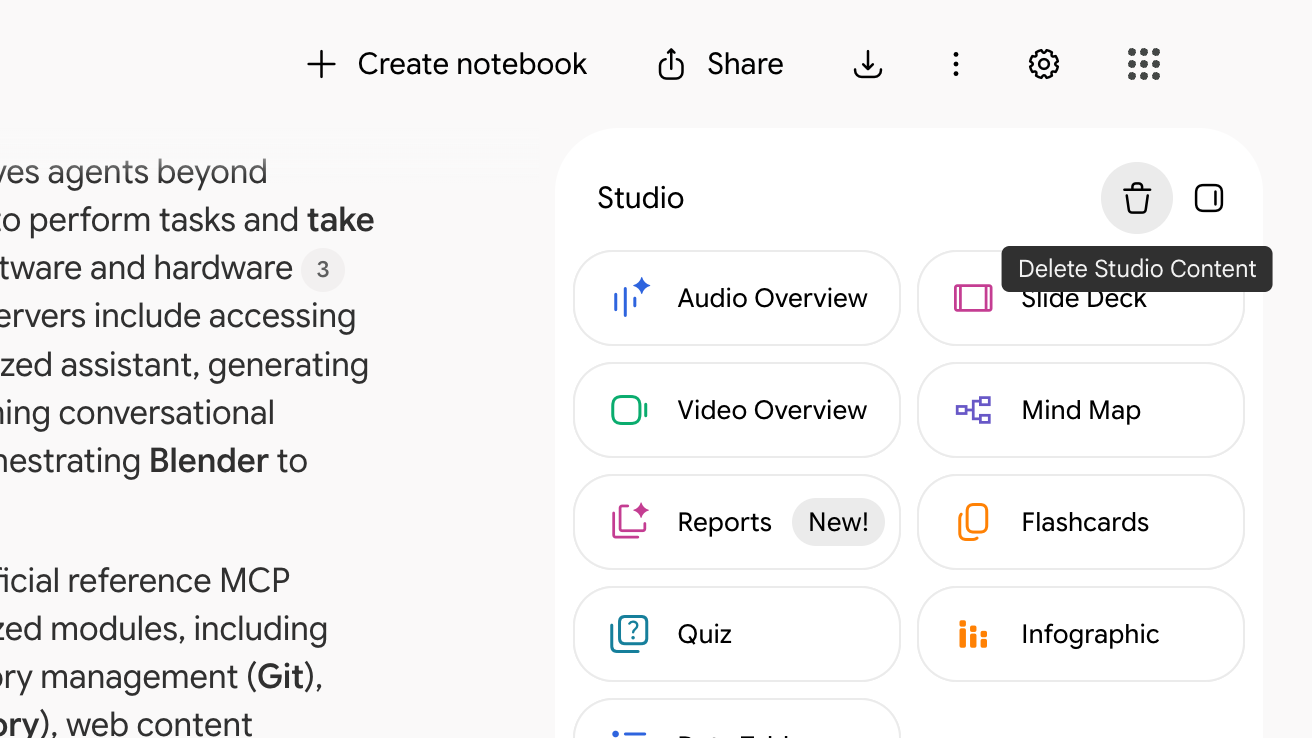
Click Delete Studio Content in the Studio panel header
It is the trash icon at the right of the panel header. The Delete Studio Content dialog opens with every item selected.
Untick the items you keep
The search field and the type filter narrow the list, while the checkbox in the header selects or clears everything the list currently shows.
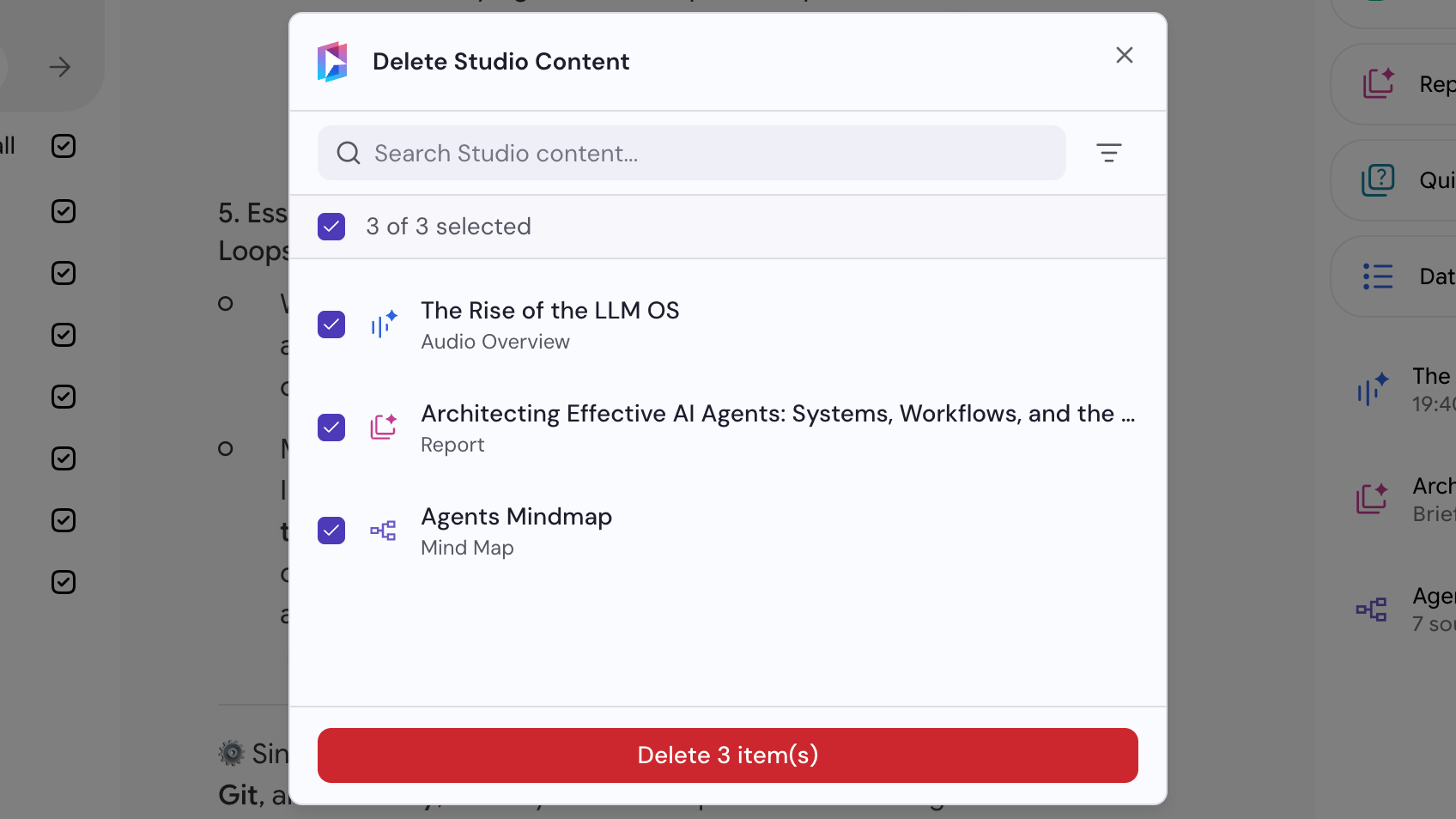
Click Delete items
The selected items are deleted immediately.