Add a whole conversation
Notebook Clipper adds a conversation with ChatGPT, Claude, Gemini, Perplexity, DeepSeek or Grok to a notebook in Gemini Notebook (formerly NotebookLM) as one source: every question and answer, in order. When you add the same conversation again later, you choose whether it becomes a second source or replaces the first.
Add the conversation
There are two ways to add a conversation to Gemini Notebook.
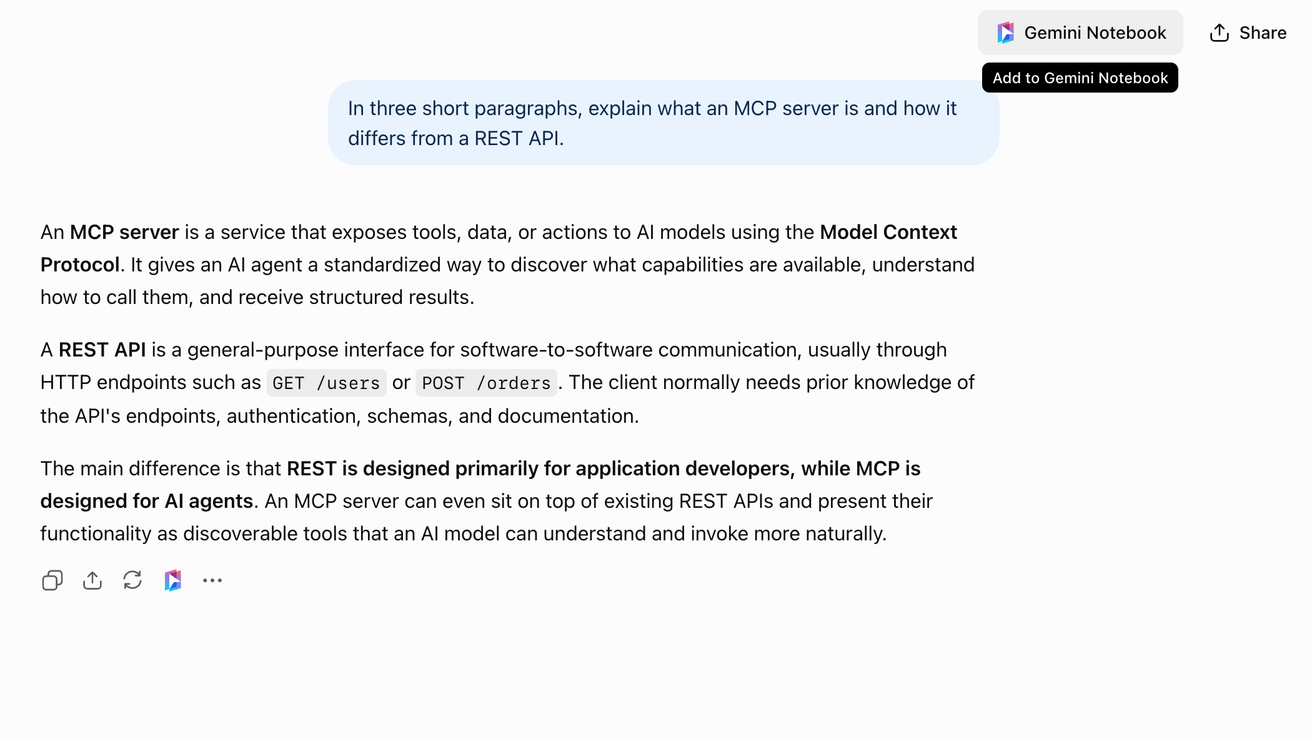
Click
 Gemini Notebook in the header
The button sits in the conversation header, left of Share. On Gemini it sits left of the conversation menu. The Add to Notebook dialog opens.
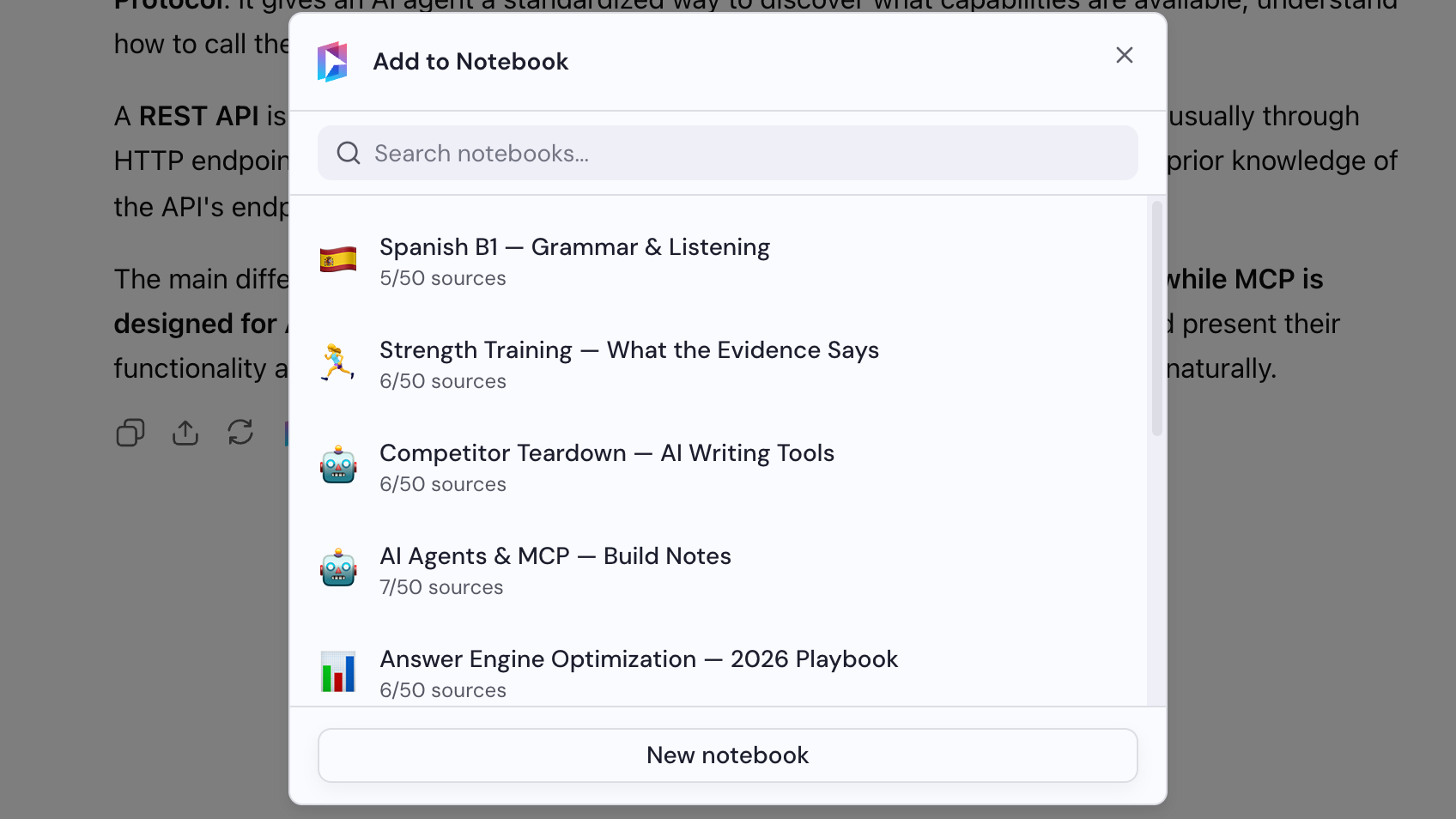
Select a notebook
Choose a notebook in the Add to Notebook dialog, or click New notebook to create one.
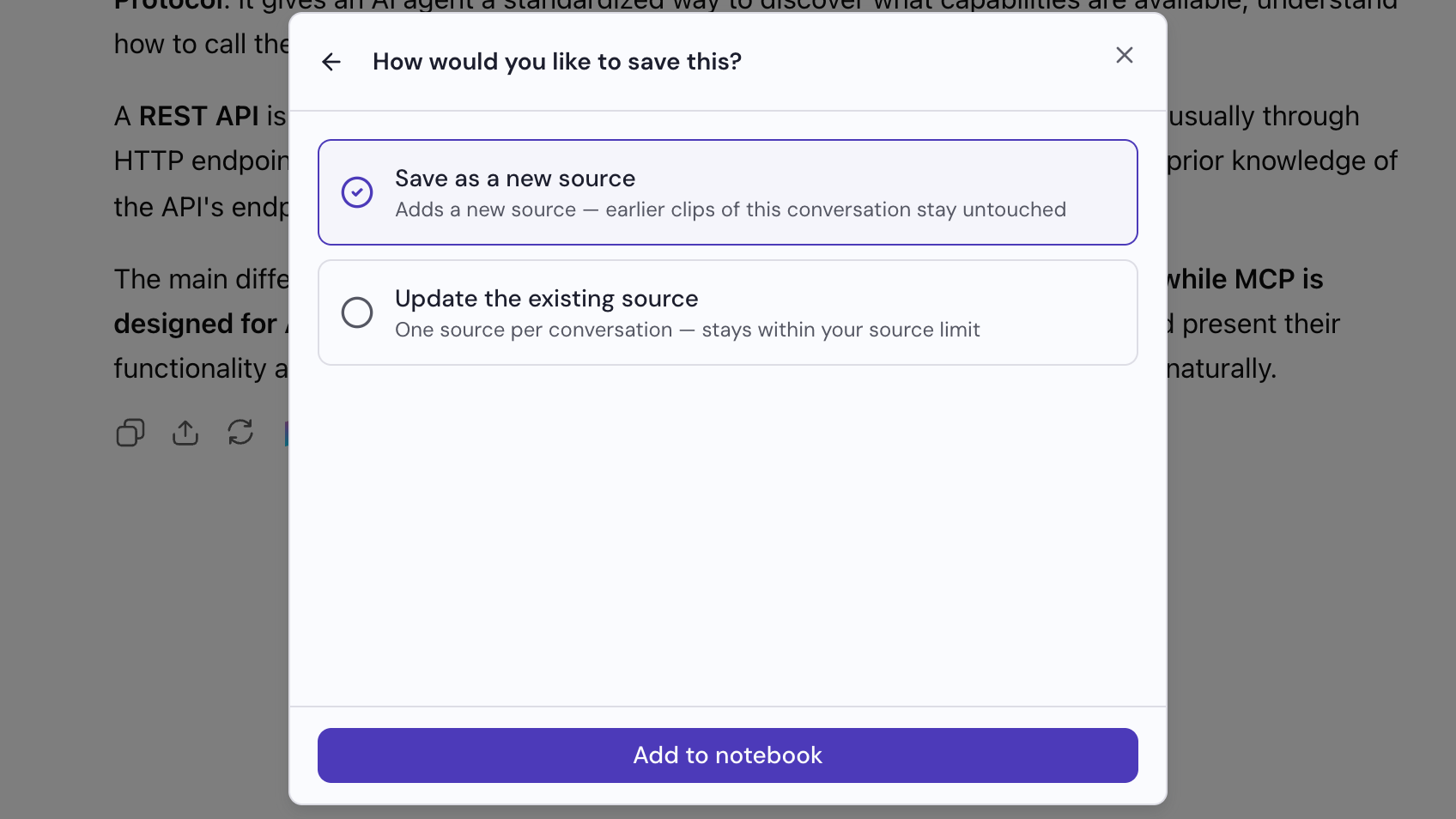
Choose how to save it
The dialog asks how you would like to save this. Choose one: Save as a new source adds a source and leaves earlier ones untouched, while Update the existing source replaces the source from the last time you added this conversation. Then click Add to notebook.