Add an X post
Notebook Clipper adds an X (Twitter) post to a notebook in Gemini Notebook (formerly NotebookLM) as one source: the author, the date and the text. If the post is part of a thread by the same author, you can add the whole thread as one source instead.
Add the post
There are two ways to add a post to Gemini Notebook.
Click
 Add to Gemini Notebook under the post
The icon sits at the end of the post’s action row, after Share. The Add to Notebook dialog opens.

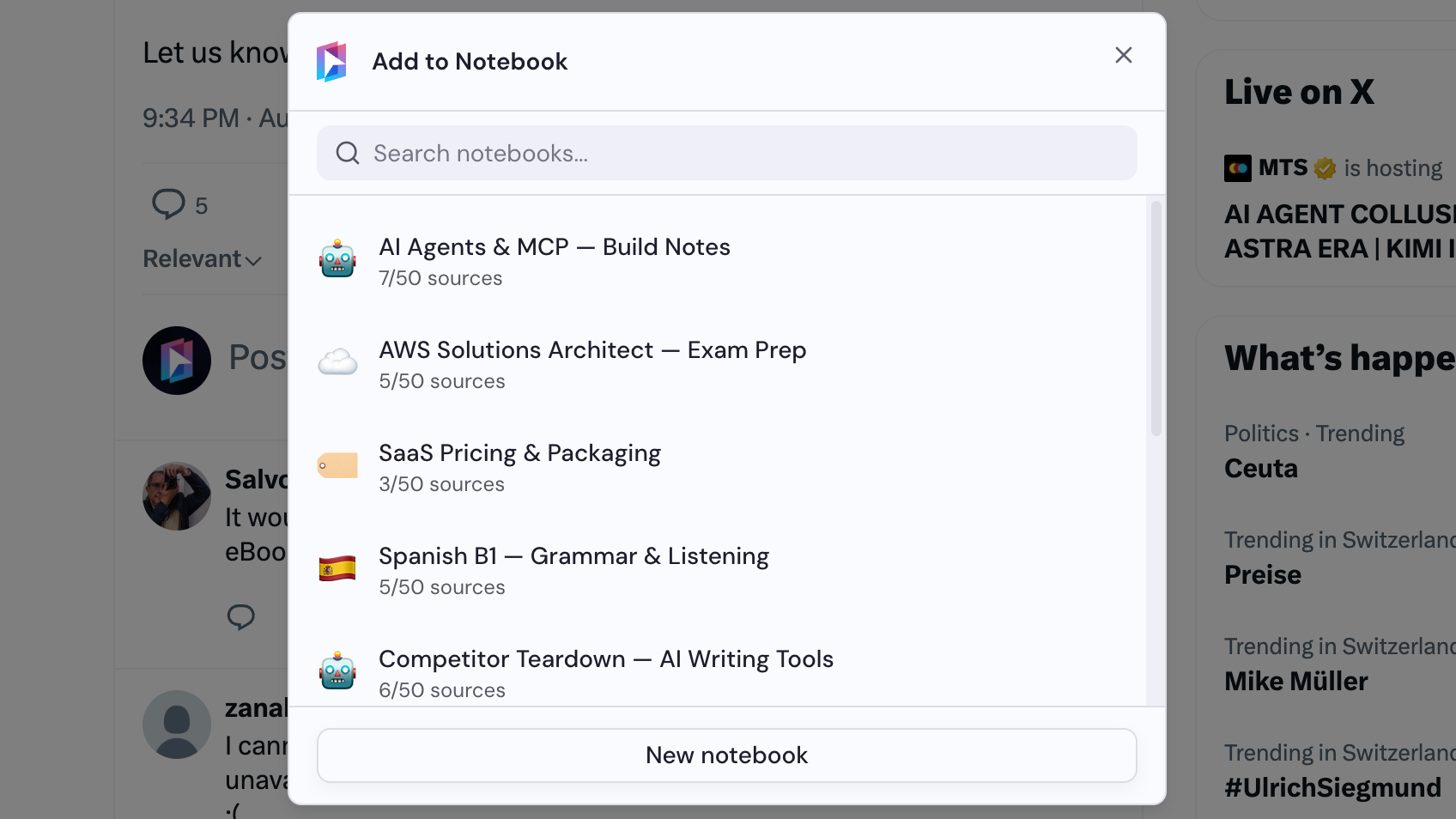
Select a notebook
Choose a notebook in the Add to Notebook dialog, or click New notebook to create one. A single post is added as soon as you select a notebook.
Choose what to clip, if asked
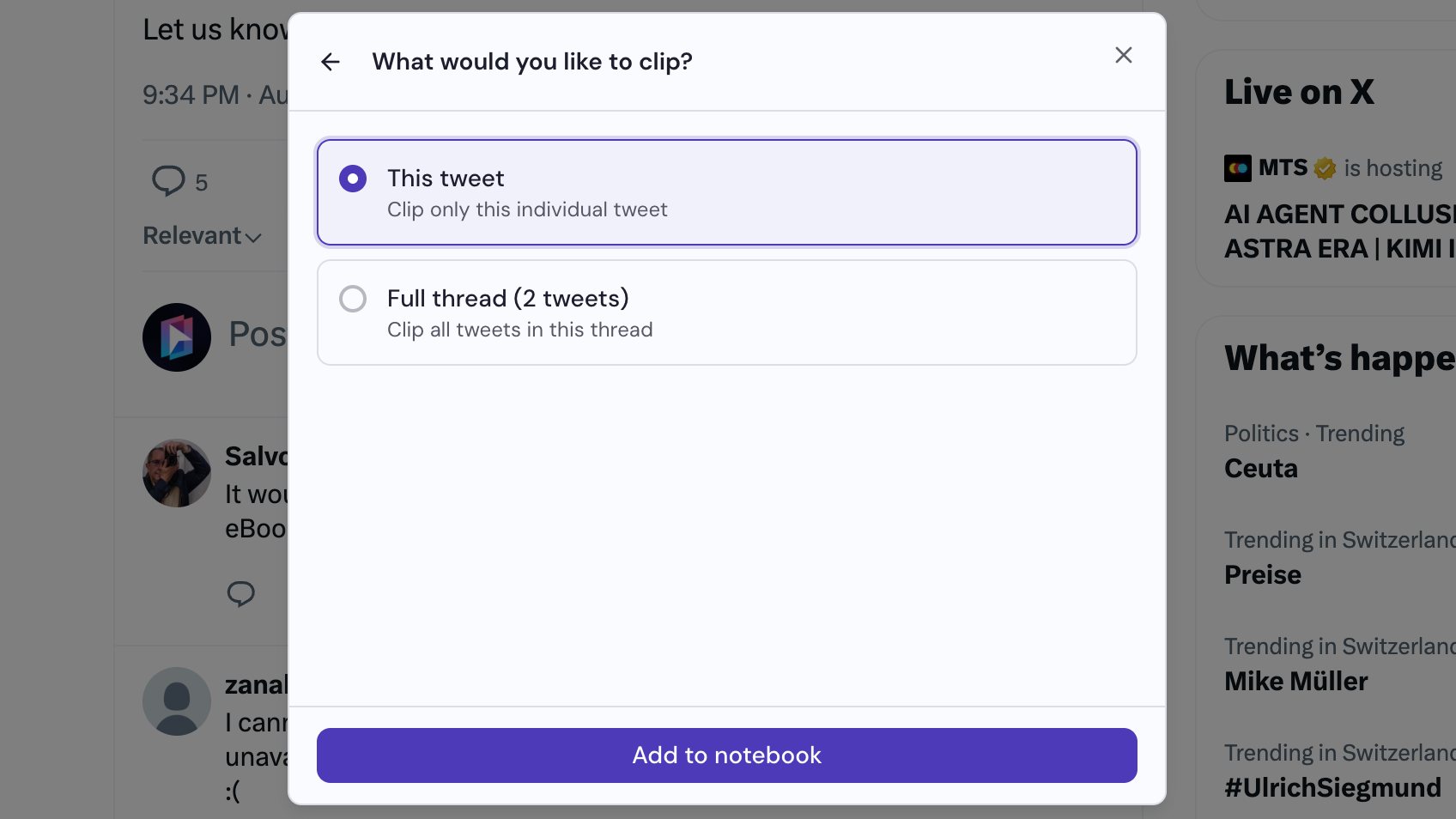
If the post is part of a thread by the author, you can add the post only or the full thread. Then click Add to notebook to add it as a source in Gemini Notebook.