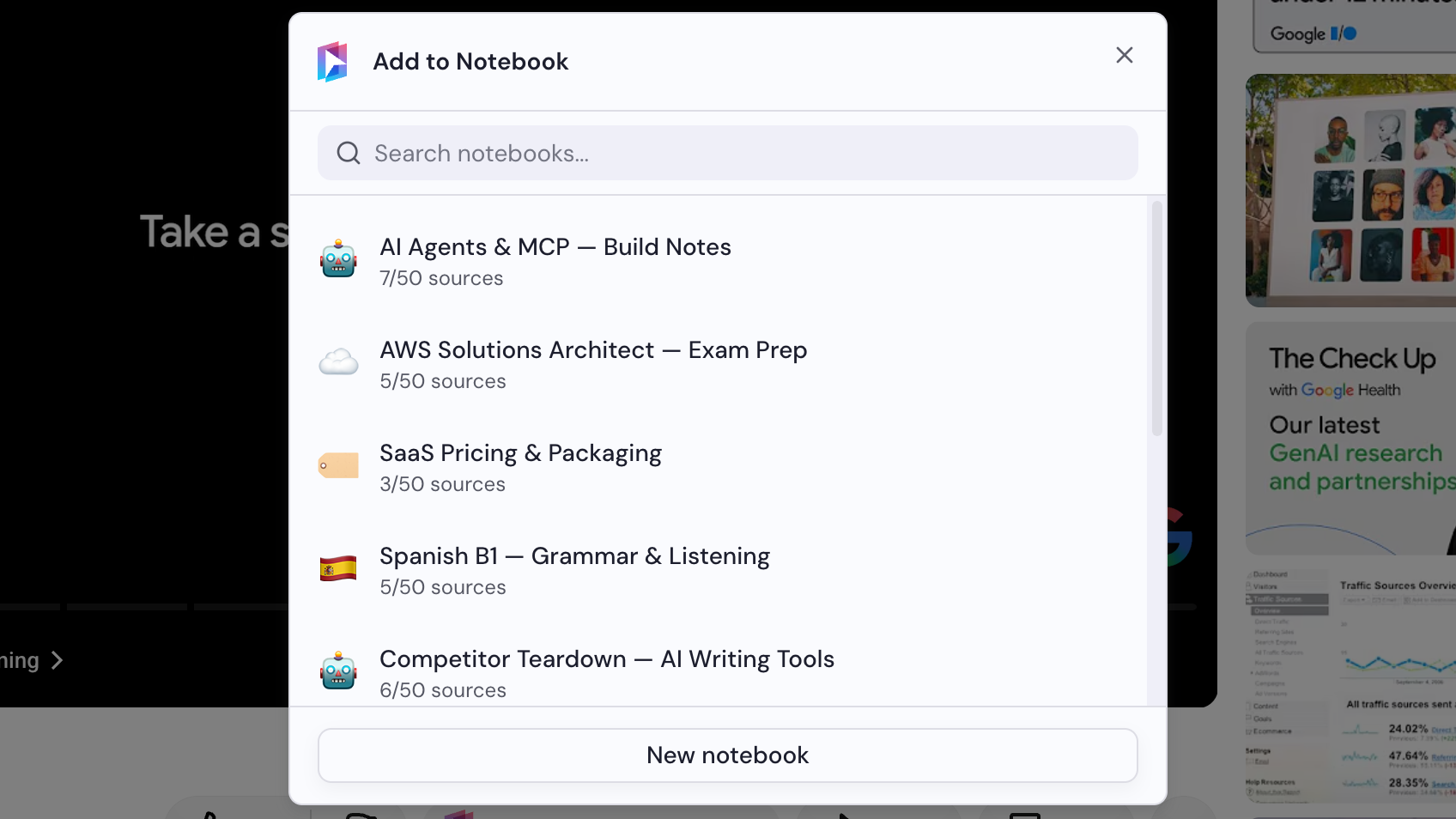
Add a YouTube video
Notebook Clipper adds a YouTube video to a notebook in Gemini Notebook (formerly NotebookLM) as one source, transcript included. The video must be public or unlisted.
Add the video
There are two ways to add a video to Gemini Notebook.
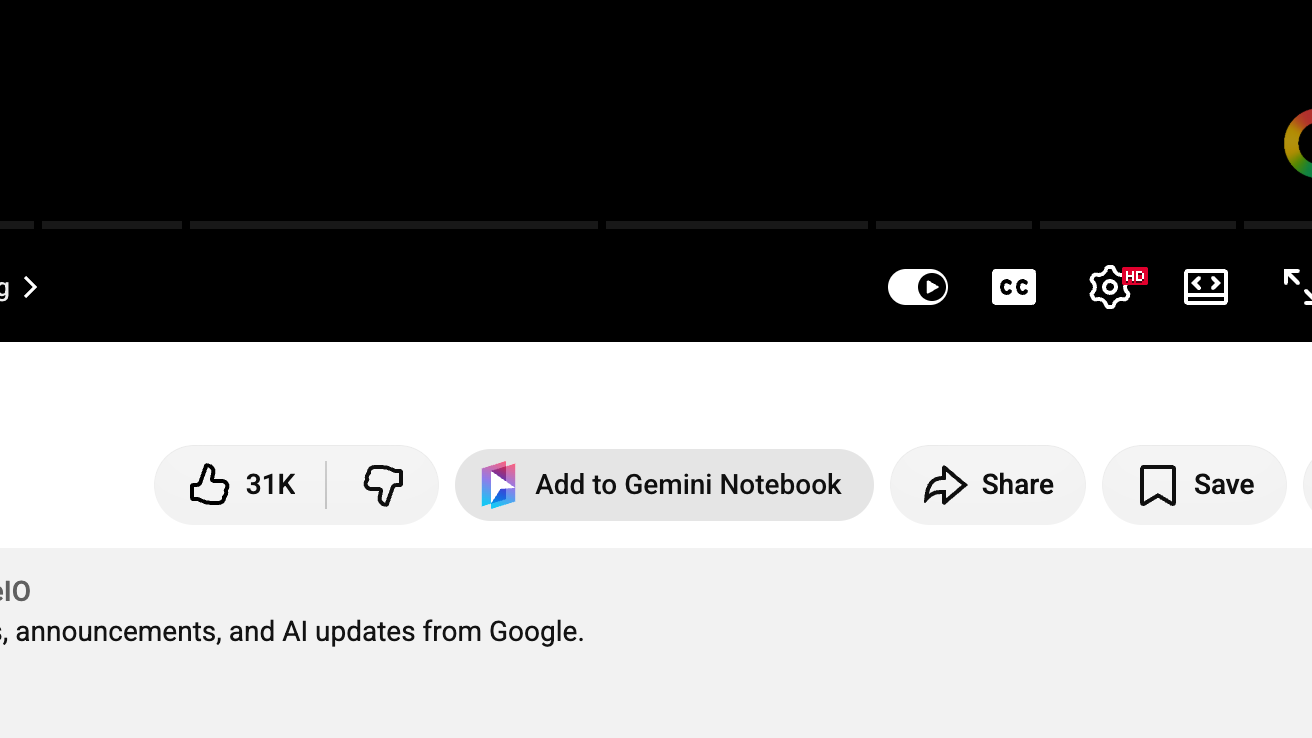
Click Add to Gemini Notebook under the video
The button sits between Like and Share. The Add to Notebook dialog opens.
Select a notebook
Choose a notebook in the Add to Notebook dialog, or click New notebook to create one. The video is added as soon as you select a notebook.