


Add an X author’s articles
Notebook Clipper adds every X (Twitter) Article an author has published to a notebook in Gemini Notebook (formerly NotebookLM), from the Articles tab on their profile, each article as its own source or all of them as one combined source. The extension fetches every article’s full text, so a long list takes a while; a notification shows the progress.
Add the articles
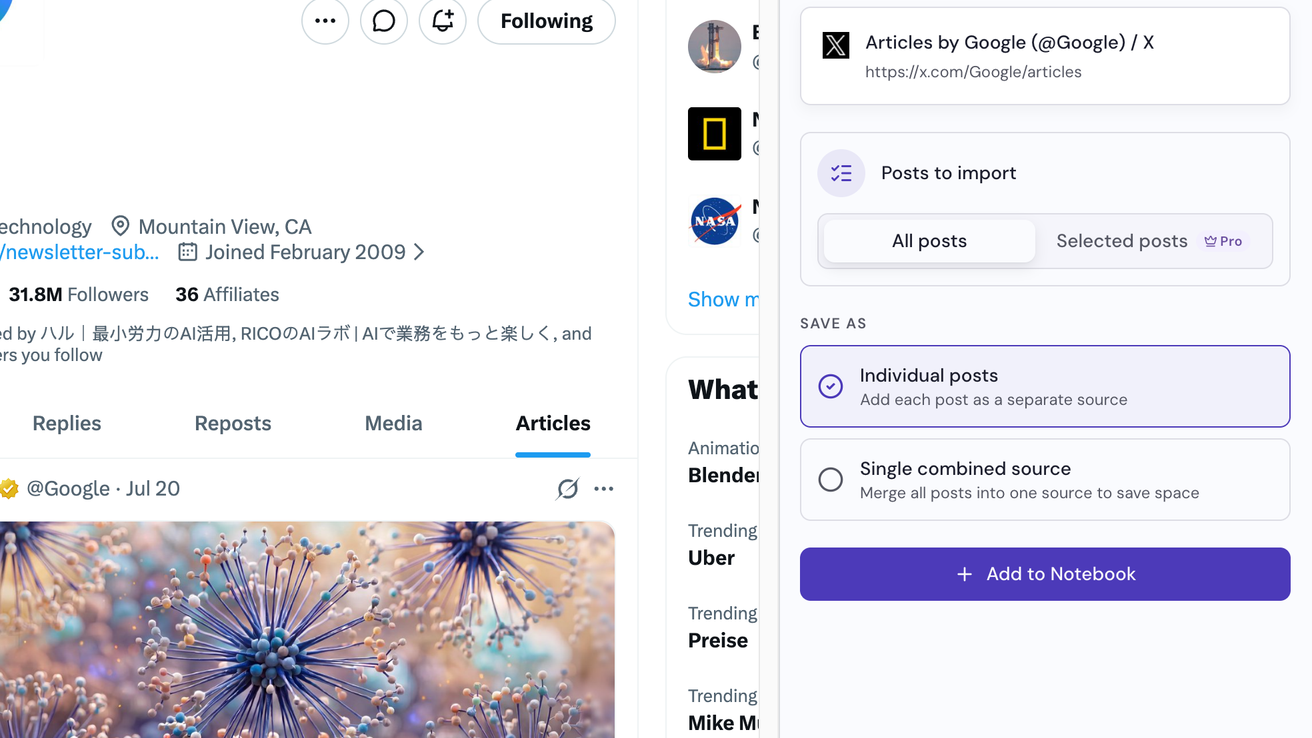
Open the side panel on the author’s Articles tab
On the author’s profile, open the Articles tab, then click the Notebook Clipper icon in your browser’s toolbar. The panel shows the page under Current Tab, with Posts to import set to All posts.
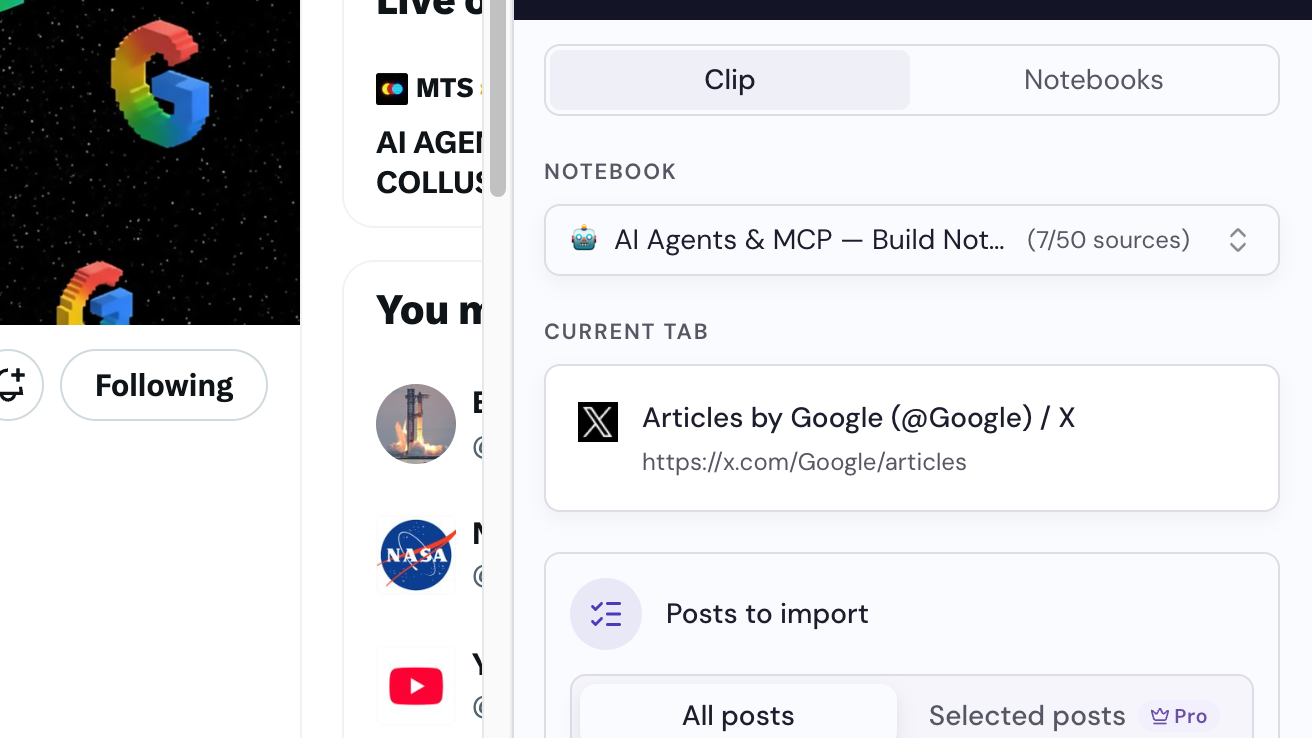
Select a notebook
A notebook is already selected at the top of the panel. Pick another one if you want, or click Create a notebook.
Choose how to save them
Under Save as, choose Individual posts to add each article as its own source, or Single combined source to add them all as one.
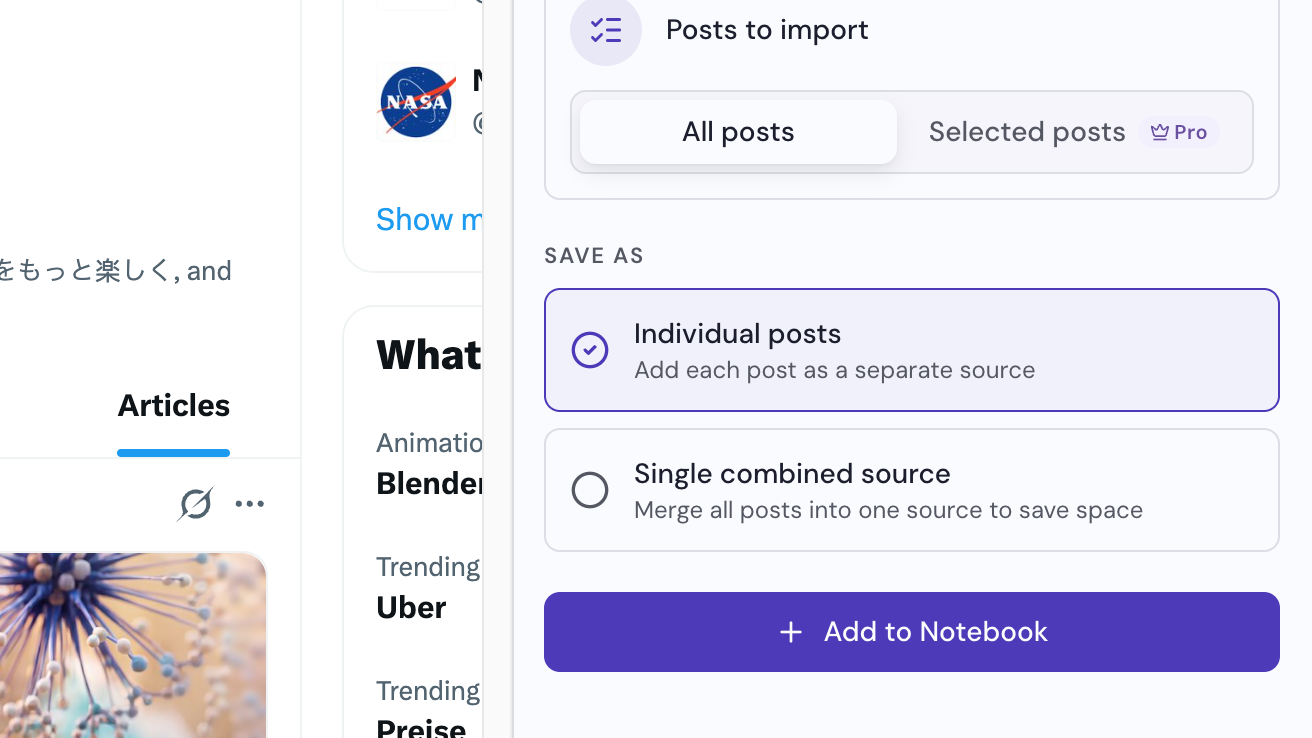
Click Add to Notebook
The button is at the bottom of the panel. You can keep browsing while the articles are added.